GPT Image 2.5 Flare · OpenAI

GPT Image 2.5 Generator: Create and Edit Images

Create from a prompt or reference photo with GPT Image 2.5 Flare and Sunburst, then refine and download your image.

0 / 4000

120 credits for this run

Describe what you want to make.

No watermark · Credits back if a run fails · Silent MP4

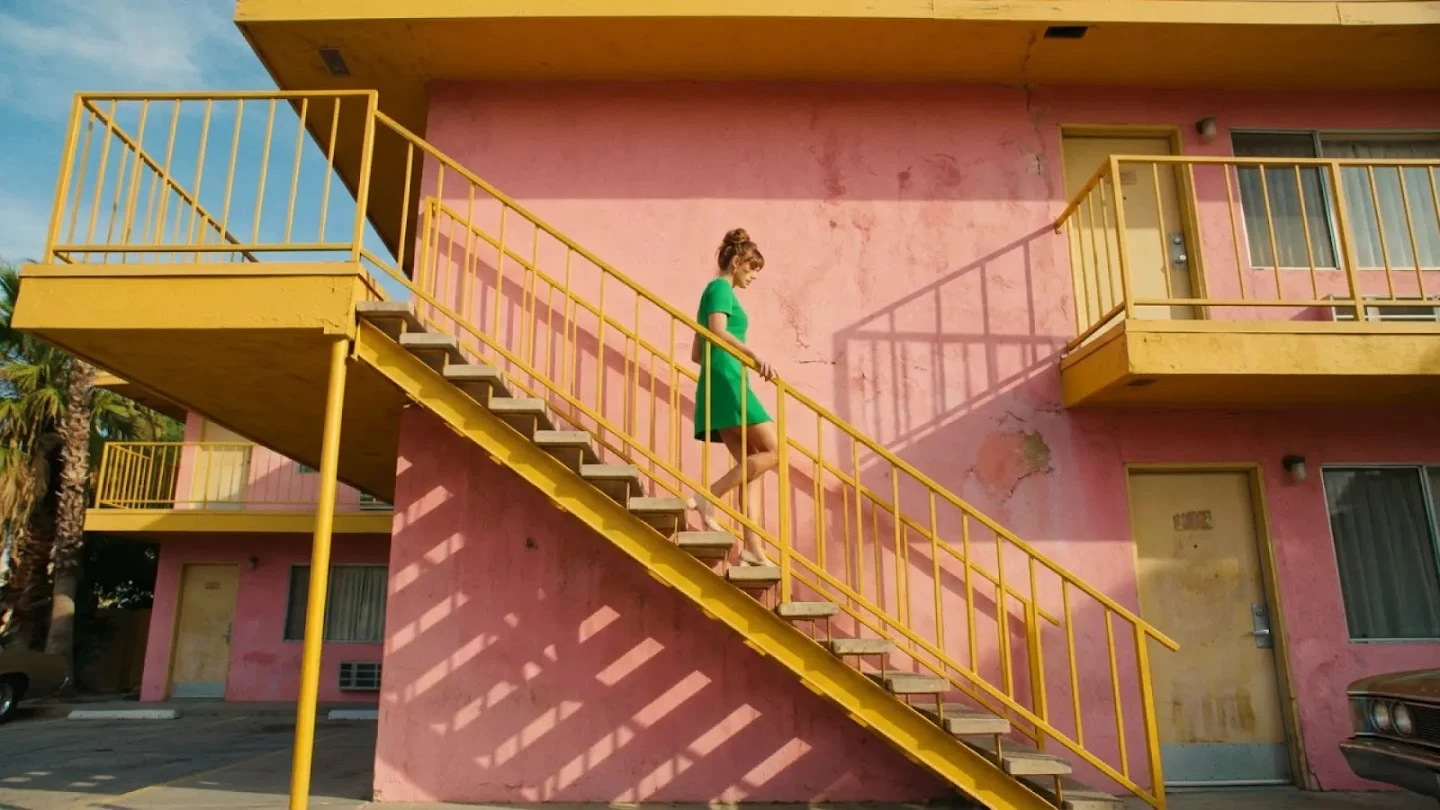
Text to image example: woman in a green dress descending a bright yellow staircase against a pink facade, Nano Banana 2.1, 16:9

Architectural fashion

Nano Banana 2.1 · 16:9 · 2K

A fashion editorial of a woman in a green dress walking down a bright yellow staircase against a pink motel facade. Geometric composition, warm sunlight.

Click any sample image to preview1 / 6
GPT Image 2.5 Examples

What can you make with this GPT Image 2.5 generator?

Generate a readable airport kiosk, a labeled product still life, or an information-rich home dashboard. Each example includes a prompt you can adapt and a result you can inspect before you spend credits.

GPT Image 2.5 Flare · 2:3 · 2K · 350 credits

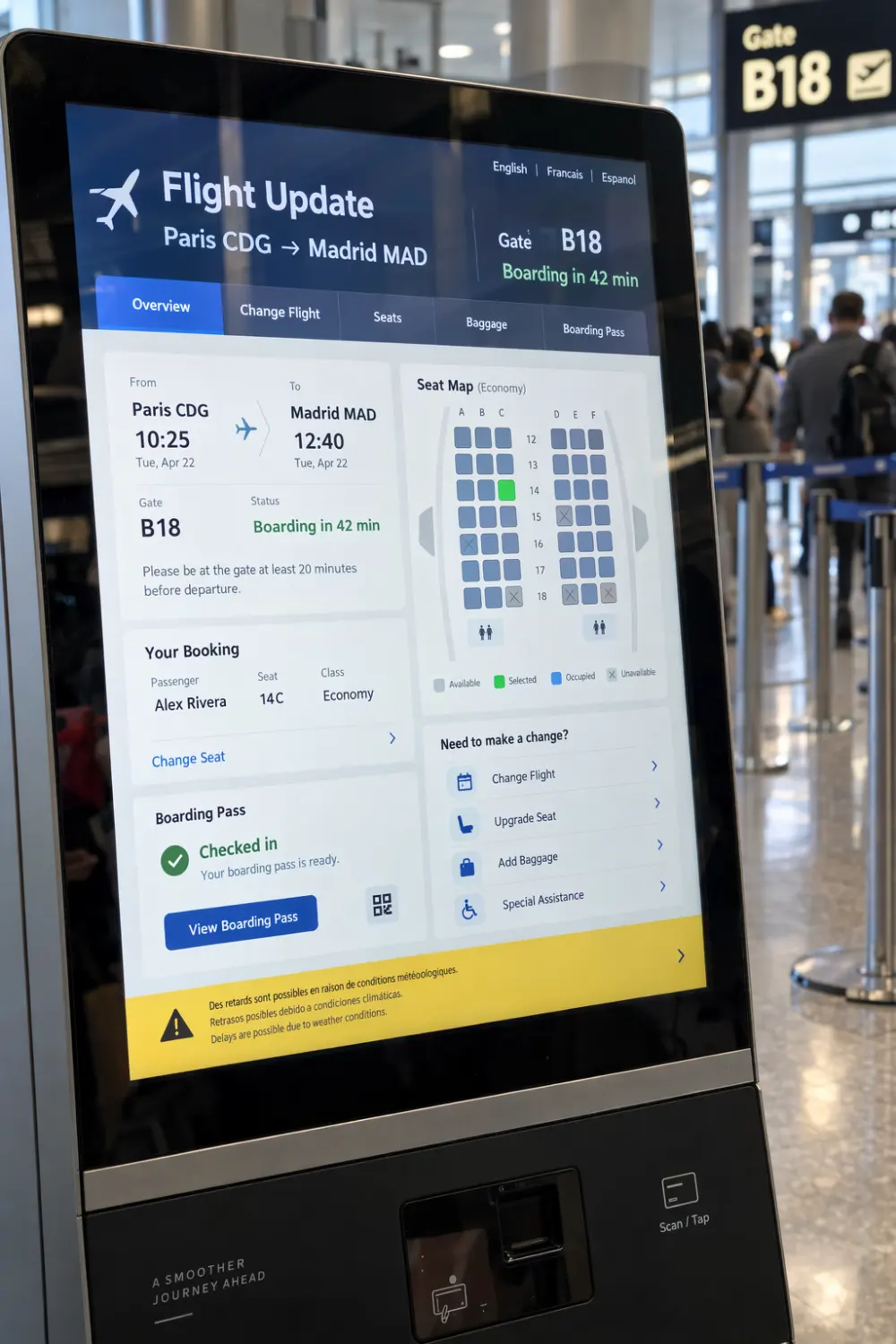
Readable airport kiosk

A realistic airport self-service kiosk showing a flight update screen. Exact text: “FLIGHT UPDATE”, “Paris CDG → Madrid MAD”, “Gate B18”, and “Boarding in 42 min”. Keep the interface hierarchy clear, with a softly blurred terminal behind it and no extra brand names.
GPT Image 2.5 Flare · 1:1 · 1K · 120 credits

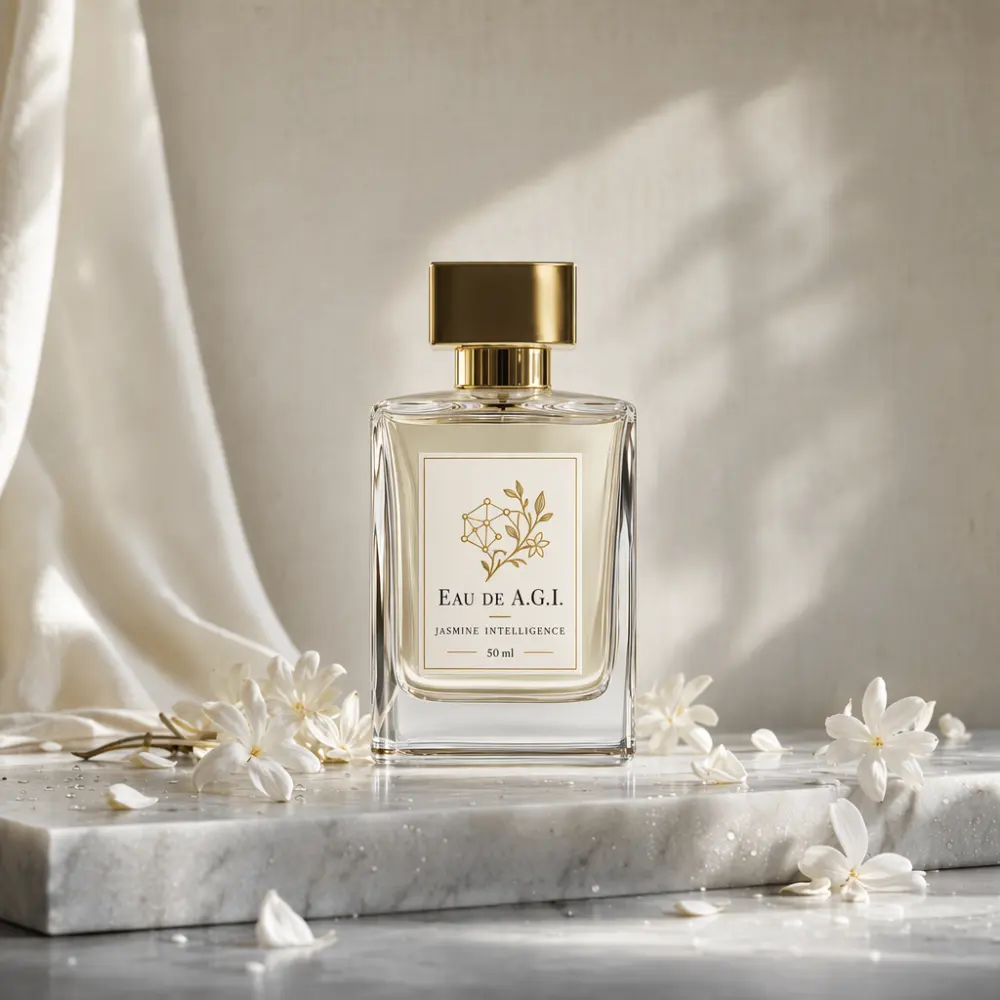
Product still life

A square luxury fragrance product photograph. Clear glass bottle with a gold cap on a pale marble slab, small white jasmine flowers, soft window light and a warm neutral wall. The label reads exactly “EAU DE A.G.I.”, “JASMINE INTELLIGENCE”, and “50 ml”. No other text.

GPT Image 2.5 Flare · 3:2 · 2K · 350 credits

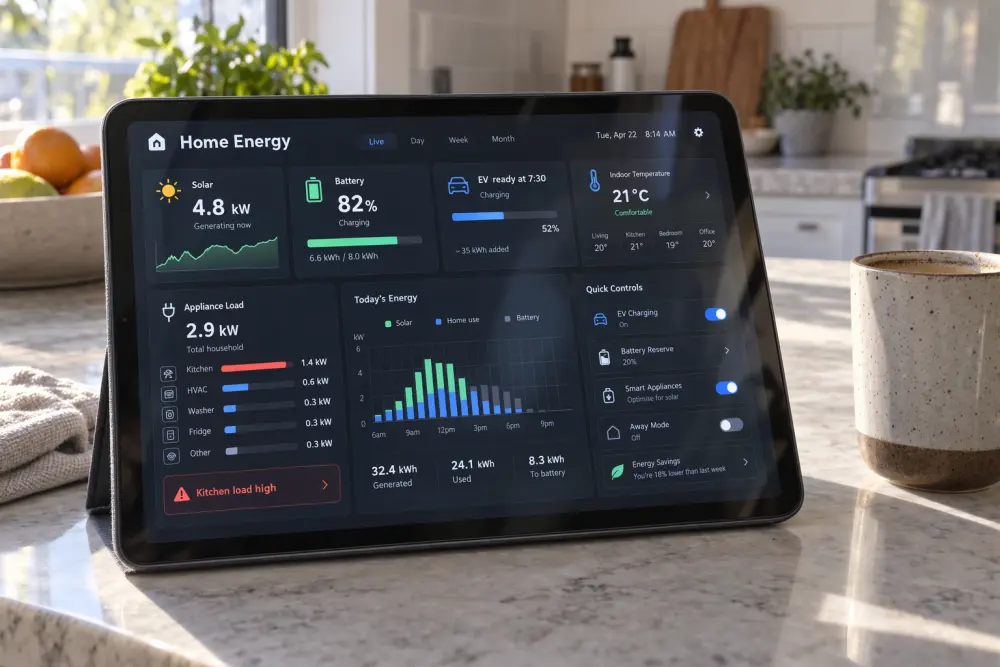
Information-rich dashboard

A tablet on a bright kitchen counter showing a polished home-energy dashboard. Include clear cards for Solar 4.8 kW, Battery 82%, EV ready at 7:30, Indoor temperature 21°C, and a clean weekly energy bar chart. Product photography, legible interface, no logos.

Swipe to inspect all 3 prompts

Editorial examples made for this GPT Image 2.5 page. Results vary between runs.

Reference Photo Edit

What can you change with GPT Image 2.5 image editing?

Upload a reference photo, name one focused change, and compare the edited result with the source before you use it.

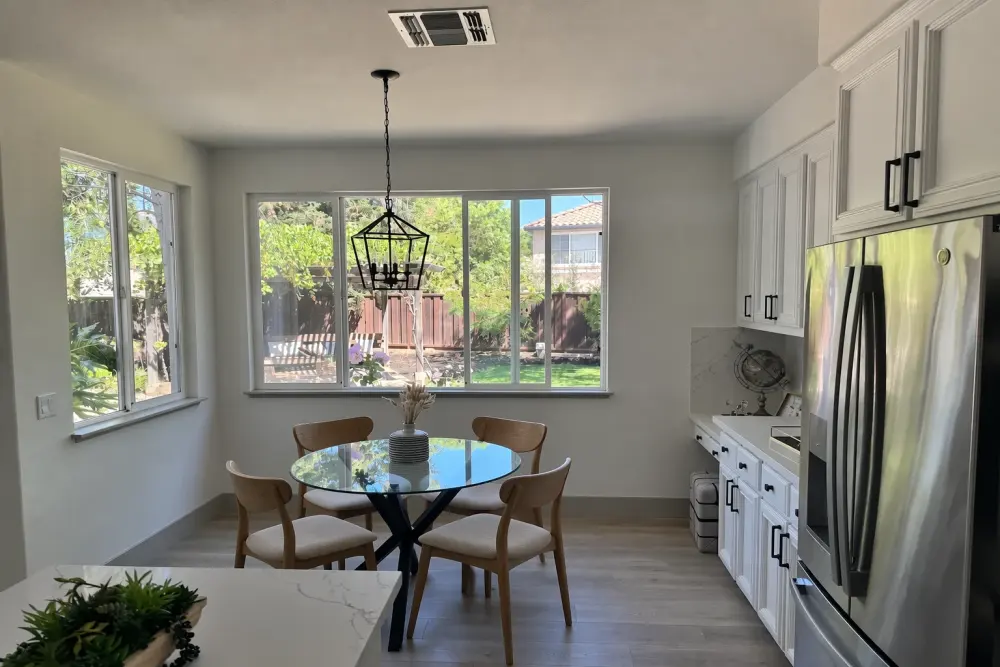
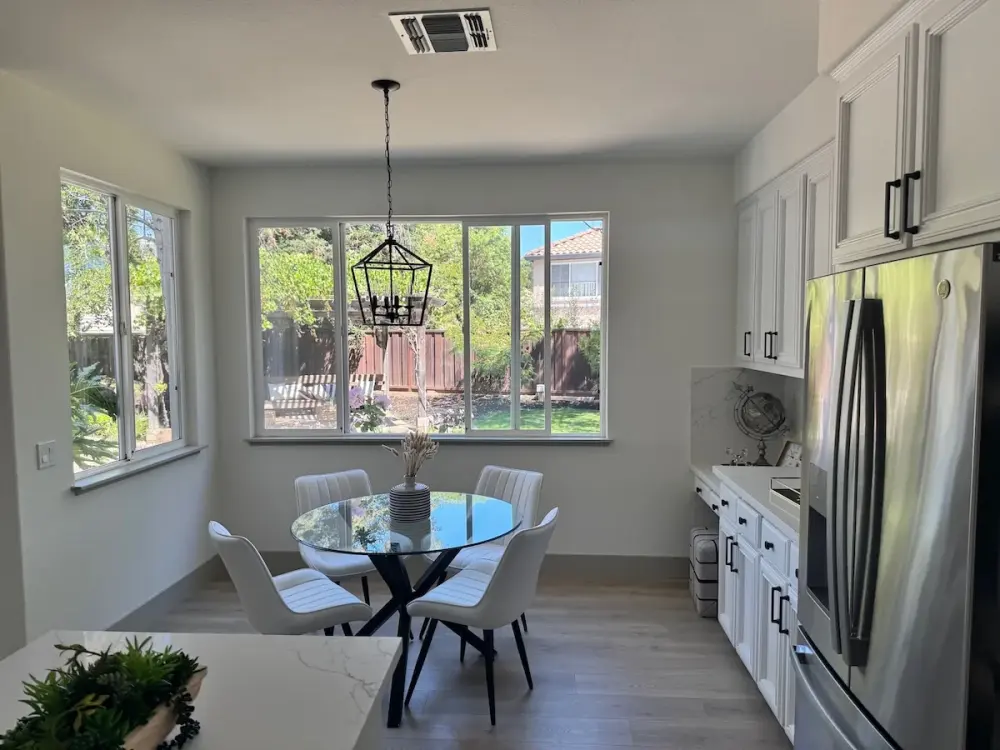
Image to image AI example: GPT Image 2.5 changes white dining chairs to walnut while keeping the kitchen unchangedOriginal bright kitchen photo with white dining chairs
Editorial demo

GPT Image 2.5 Flare · auto · 2K · 350 credits

Restyle the chairs

Use the reference kitchen photo as the source. Replace the four white dining chairs with simple warm-walnut chairs. Keep the table, windows, cabinets, refrigerator, pendant light, floor, camera angle and daylight unchanged.

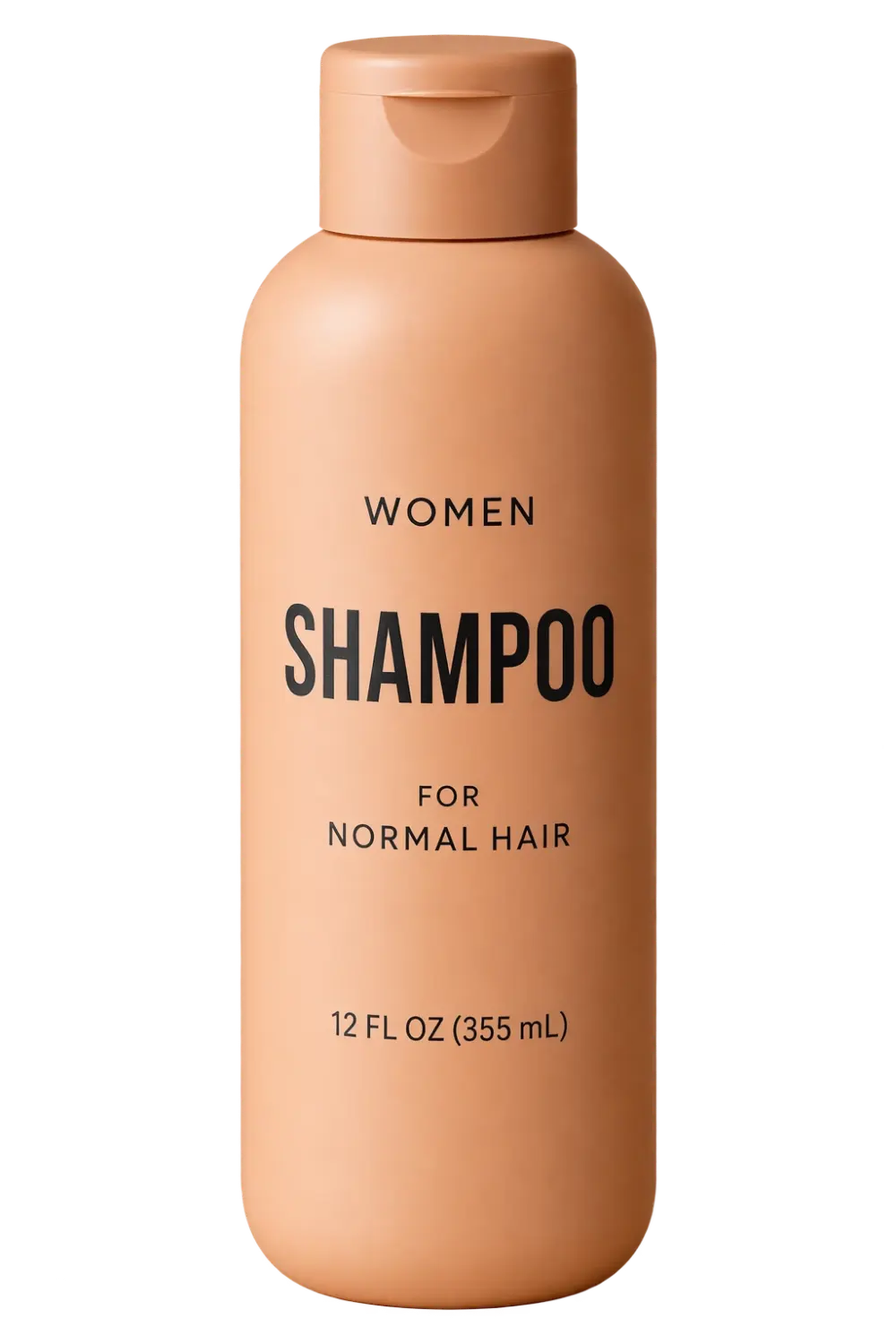
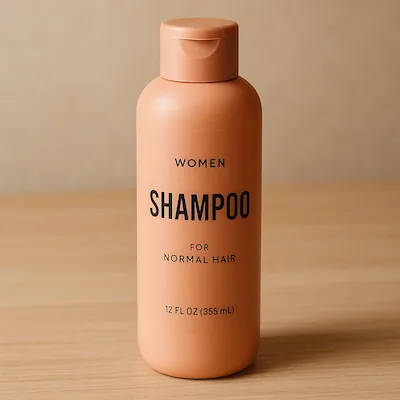
Image to image AI example: GPT Image 2.5 isolates a shampoo bottle with its label preservedOriginal peach shampoo bottle on a warm tabletop
Editorial demo

GPT Image 2.5 Flare · auto · 1K · 120 credits

Make a clean product cutout

Remove the table and wall from the reference photo. Keep the peach shampoo bottle, cap, proportions and every word on the label exactly as shown. Output a centered product cutout with clean edges and a transparent background.

Image to image AI example: GPT Image 2.5 removes a flower while preserving the person and backgroundOriginal portrait of a man holding a white flower
Editorial demo

GPT Image 2.5 Flare · auto · 2K · 350 credits

Remove one object

Remove the white flower from the man’s hand. Keep his face, blue cap, hand position, shirt graphic, brick wall, crop and lighting unchanged. Do not add another object or any text.

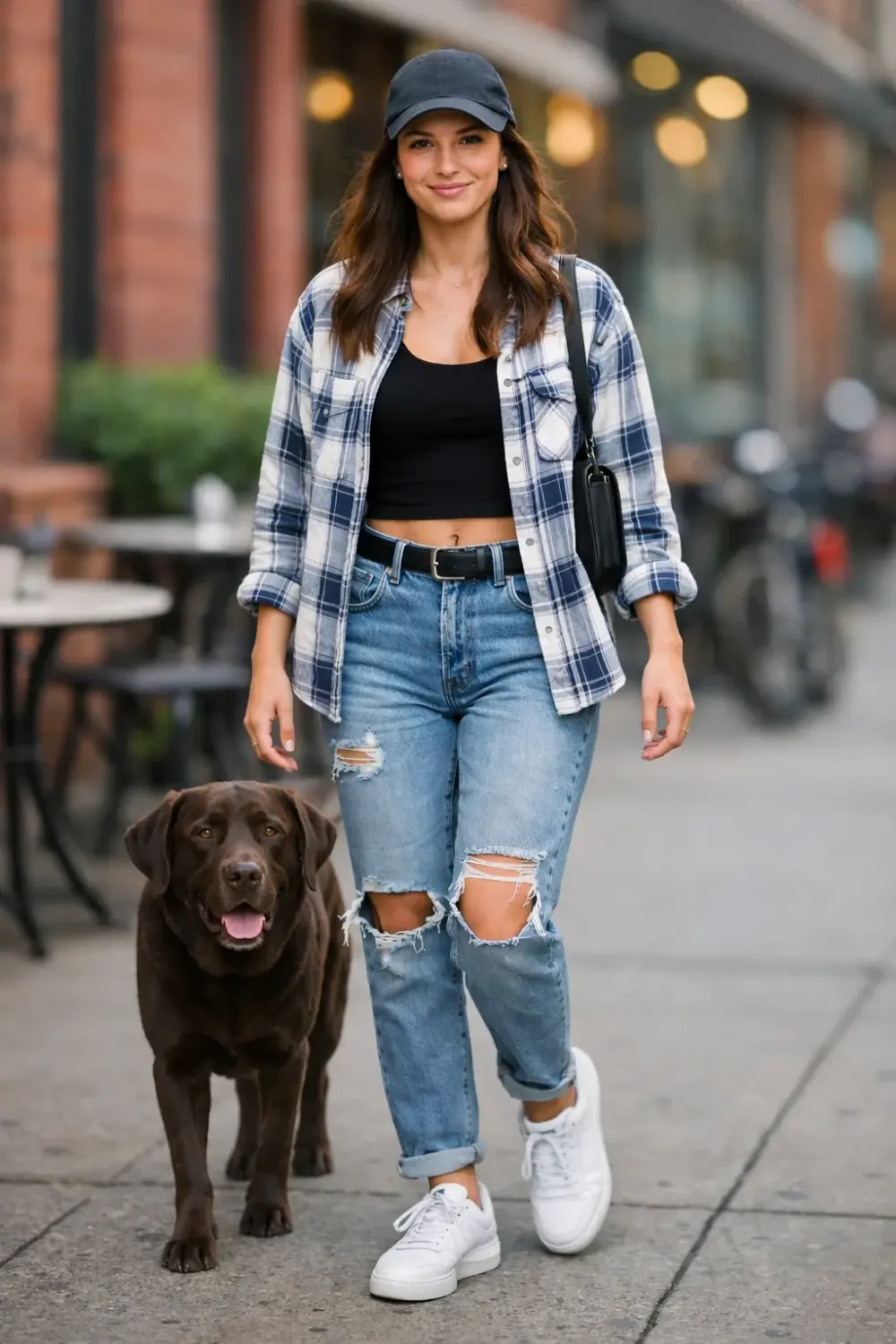
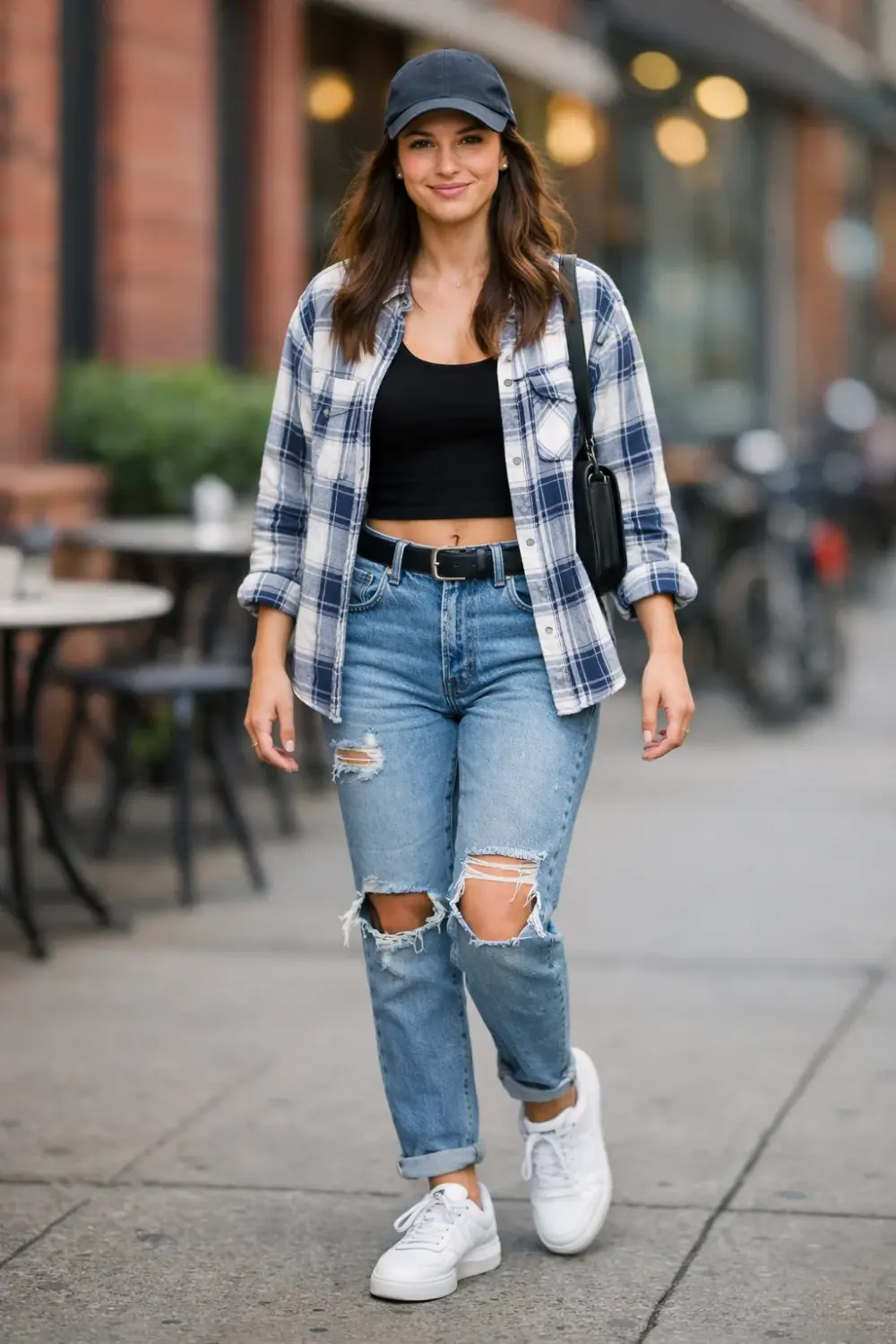
Image to image AI example: GPT Image 2.5 adds a Labrador beside a woman while preserving her portraitOriginal street portrait of a woman in a cap
Editorial demo

GPT Image 2.5 Flare · auto · 2K · 350 credits

Add a companion subject

Add a friendly chocolate Labrador standing beside the woman in the reference street portrait. Match the existing evening light, lens blur, perspective and ground shadows. Keep the woman’s face, cap, clothes and pose unchanged.

Swipe to inspect all 4 prompts

Before and after editorial example. Review every unchanged detail.

What It Is

What is GPT Image 2.5, and is it the same as ChatGPT Image 2.5?

GPT Image 2.5 is OpenAI’s image model family for creating and editing images from text and image inputs. ChatGPT Images 2.5 is the image experience name used inside ChatGPT, while this page gives you a separate prompt, credit and editing workflow. See the OpenAI announcement for the release context and model positioning.

Create a new image from a brief

Describe the subject, layout, lighting and any words that must appear in the picture. GPT Image 2.5 turns that brief into a downloadable image you can refine on this page.

Text inputLayout controlDownloadable image
GPT Image 2.5 perfume product example with a readable label
Prompt to imageGPT Image 2.5

A glass fragrance bottle on pale marble with jasmine flowers and a readable label.

Edit a photo while naming what stays

Upload a reference photo and describe one change. Say what must stay the same, then compare the output with the original before you publish it.

Upload a photoFocused editBefore and after check
GPT Image 2.5 kitchen edit example with walnut chairs
Photo editReference image

Replace the white dining chairs with warm walnut chairs. Keep the kitchen unchanged.

Three Steps

How do you generate with GPT Image 2.5 or edit a photo?

Write a focused brief or upload a reference, choose the output settings, review the credit quote, then refine or download the result without leaving the page.

  1. STEP 01Step 01 · Prompt
    GPT Image 2.5 airport kiosk result from a detailed image brief

    1. Describe the result

    Name the subject, setting, composition and light. Put important in-image words in quotation marks.

  2. STEP 02Step 02 · Settings
    GPT Image 2.5 reference kitchen photo before a focused edit

    2. Add a reference and choose settings

    For an edit, upload the source photo and describe the change plus the details that must stay. Choose Flare or Sunburst, size and quality, then check the quote.

  3. STEP 03Step 03 · Result
    GPT Image 2.5 dashboard result ready to inspect and download

    3. Generate, inspect and refine

    Review the output at the size you will use. Download it, or send the result into another edit with the existing context preserved.

What one GPT Image 2.5 run supports

Run Specifications
6 Settings
GPT Image 2.5 generator settings
SettingAvailable choice
InputText prompt or reference image
VersionsFlare for fast iteration, Sunburst for precision editing
QualityMedium is applied for the current GPT Image 2.5 request
Output sizes1K, 2K and 4K presets
Aspect ratios1:1, 3:2, 2:3, 16:9 and 9:16
FormatsPNG output with settings shown before generation
← Swipe horizontally to read full table →

Specification summary: GPT Image 2.5 accepts a prompt or reference image, then returns one PNG at the selected size and ratio. The current request uses medium quality and the live credit quote appears beside Generate.

Choose a Version

Should you choose GPT Image 2.5 Flare or Sunburst?

Choose Flare when you are exploring several directions. Choose Sunburst when the edit needs tighter control and you are ready to inspect a more detailed result.

Version Guide
4 Tasks
GPT Image 2.5 Flare and Sunburst task comparison
TaskStart withCheck
Explore poster or thumbnail ideasFlareComposition and small-size readability
Test several product settingsFlareProduct shape, label and lighting
Refine an approved imageSunburstUnchanged areas and reference fidelity
Prepare a detailed campaign assetSunburstFine detail at the final output size
← Swipe horizontally to read full table →

Version summary: Flare favors fast iteration and Sunburst favors precision-focused image work. Neither guarantees a perfect first result.

Model Specifications

What sizes and formats does GPT Image 2.5 support?

GPT Image 2.5 supports text and image inputs, quality controls, custom dimensions and transparent output through the underlying image model. The OpenAI image generation guide documents the output controls, while this generator shows the options available for your selected run.

Model Specifications
6 Facts
GPT Image 2.5 documented image capabilities
CapabilitySpecification
Recommended dimensions1024 × 1024, 1536 × 1024 and 1024 × 1536
Custom dimensionsMultiples of 16, aspect ratio from 1:3 to 3:1
Maximum edge3840 pixels
Maximum pixel count8,294,400 pixels
Transparent outputPNG or WebP when transparency is selected
Review pointText placement, recurring subjects and structured layouts still need inspection
← Swipe horizontally to read full table →

Specification summary: output dimensions, quality and format are separate choices. More pixels do not guarantee more accurate text or a better edit. Review the documented limitations before publishing structured layouts.

Practical Uses

Who uses GPT Image 2.5 to make chat gpt pictures?

Use GPT Image 2.5 when you need a usable visual from a clear brief, or when a reference photo gives the model important subject and layout information.

Creators

Build covers and visual directions

Explore a thumbnail, opening frame or campaign direction before you commit to a full production.

  • Try multiple compositions quickly
  • Keep the prompt with the output
  • Use the selected crop as your check
Product teams

Test a new product setting

Use a real reference photo, then change the scene while checking the product shape, label and proportions.

  • Start with the product you own
  • Name the details that must stay
  • Compare the output before publishing
Social teams

Make a picture with readable copy

Keep headlines short, specify position and proofread names, dates and prices before posting.

  • Use quotation marks for exact words
  • Leave intentional space around type
  • Inspect the downloaded file

When should you use a dedicated editor?

  • Pixel-perfect restoration
  • Layered design files
  • Final legal or regulated copy without proofreading

An AI image can be a finished raster asset or a starting point, depending on the job.

Before You Generate

How can you judge a GPT Image 2.5 result before spending more credits?

Use the prompt, model label, dimensions and result together. That gives you a repeatable way to decide whether another edit is worth the next quote. OpenAI’s API customer commentary also stresses checking what an edit leaves unchanged, so compare the source and result side by side.

01

Check the brief

Does the image contain the subject, layout and lighting you asked for?

02

Check the unchanged areas

For an edit, compare faces, labels, product shape and background with the source.

03

Check the file

Inspect the downloaded dimensions and format at the size where you will use it.

Known limits

Text placement, recurring characters and structured compositions can still drift. Review every result before publishing.

FAQ

What should you know before using GPT Image 2.5?

1.Can I use GPT Image 2.5 without ChatGPT Plus?

Yes. MemeVideo uses its own account and credits. A ChatGPT Plus subscription is not required for generations here.

2.Can I create chat gpt pictures for free here?

You can inspect examples and prepare a prompt before buying. Your own GPT Image 2.5 generation uses paid credits, and the quote appears before you generate.

3.Will GPT Image 2.5 keep my face or product exactly the same?

A reference image can help preserve recognizable details, but the result may change. Ask for one edit at a time and compare the output with your original.

4.Can GPT Image 2.5 put the right words in my picture?

It can render text inside images, but spelling and placement still need review. Put short text in quotation marks and proofread names, prices and dates.

5.Can I make a transparent image for a sticker?

Transparent output is supported when the selected format and settings allow it. Check the downloaded file on light and dark backgrounds before using it.

6.Why do I need an account to generate?

Your account connects the prompt, upload, credit quote and result so you can return to the task and continue editing it.

7.Can I turn the image into a video?

Yes. Download the image and use it as a starting frame in the image-to-video generator. GPT Image 2.5 itself produces an image, not motion or sound.
Start With a Real Brief

Ready to generate with GPT Image 2.5?

Bring one image task you need today. Write the brief, check the settings and generate a first version you can refine.