

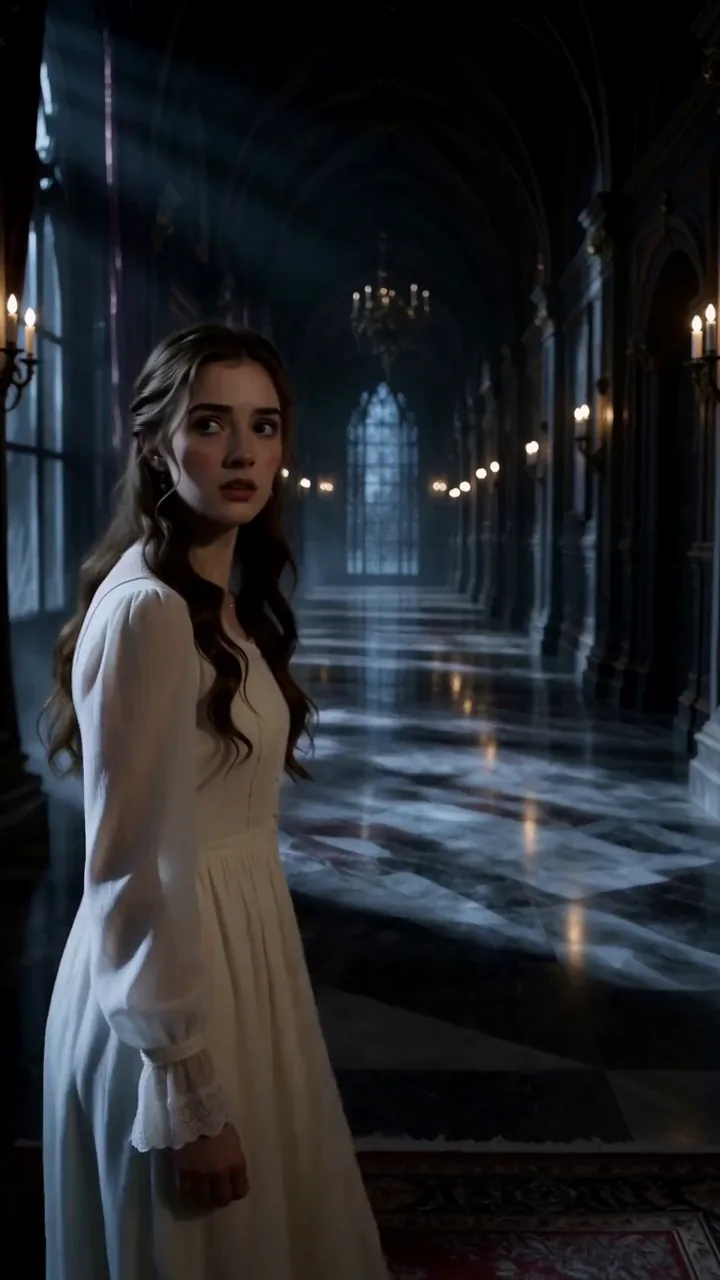
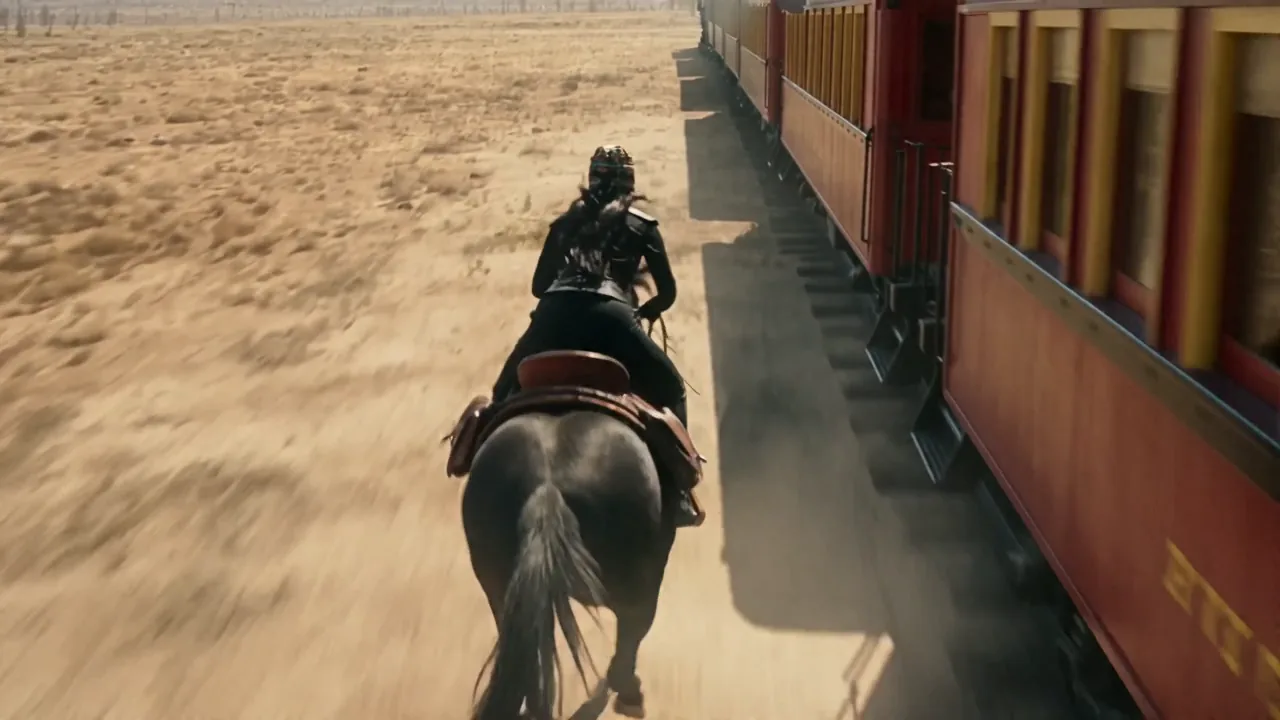
01
24h Upload Purge · Never Trained
Reference photos auto-delete after 24h and finished MP4s expire after 30 days. Only upload adults (18+) with explicit permission.
Upload 1–5 reference images, describe a new scene, and get a 2–15 second MP4. More images, clips and sound depend on the model.
Need 1+ image or video · videos 15s total, billed per second like output
Name uploads as labelled: Image 1, Video 1, Audio 1…
0 / 5000
Native sound included
600 credits for this run
Describe what you want to make.
Uploads deleted after 24 h · No watermark · Credits back if a run fails
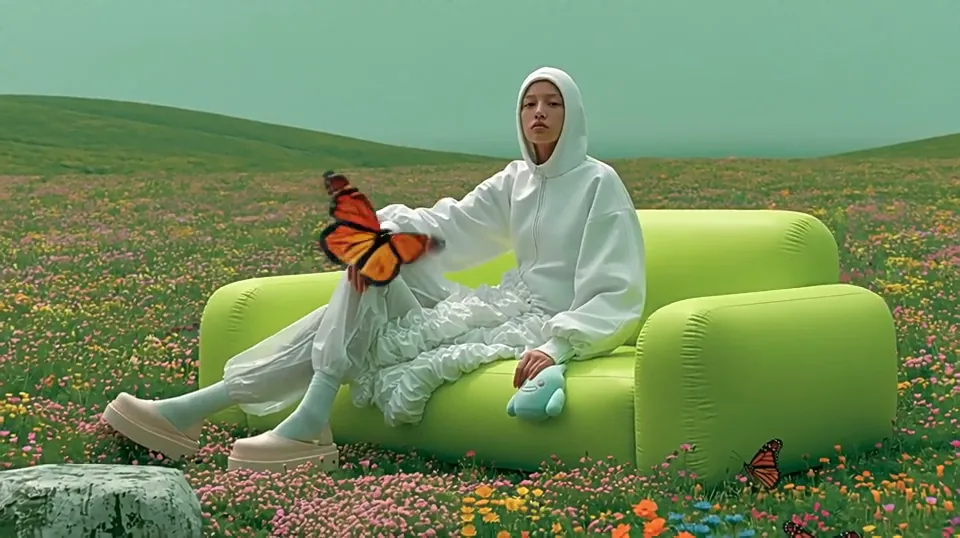
Meadow editorial lock
Wan 3.0 · 16:9 · 5s · 720p
Use Image 1 as the performer. She is reclining across a lime-green inflatable modular sofa in the middle of a wildflower meadow, wearing a white hooded coverall with a ruffled panel down the front, white trousers and pale platform shoes, with a small pale-blue object tucked against her hip. She looks straight down the lens and does not move, and only her head turns slightly as a large orange butterfly settles on her outstretched arm. More butterflies drift through the flowers around the sofa. Keep her face, hair and the whole outfit exactly as they appear in Image 1. Fashion editorial film, flat frontal composition with the sofa centred, soft overcast light with no visible shadows, a heavily saturated grade that pushes the grass and the sky toward the same green, an almost imperceptible slow push in, shallow depth of field on the foreground flowers, fine grain. Wind through grass and one distant bird, no music and nobody speaking.
Inspect each reference-to-video demo beside its source subject plates, slot-numbered prompt, model settings, credit cost, and native-sound MP4. Click Use this prompt to load the same setup above.
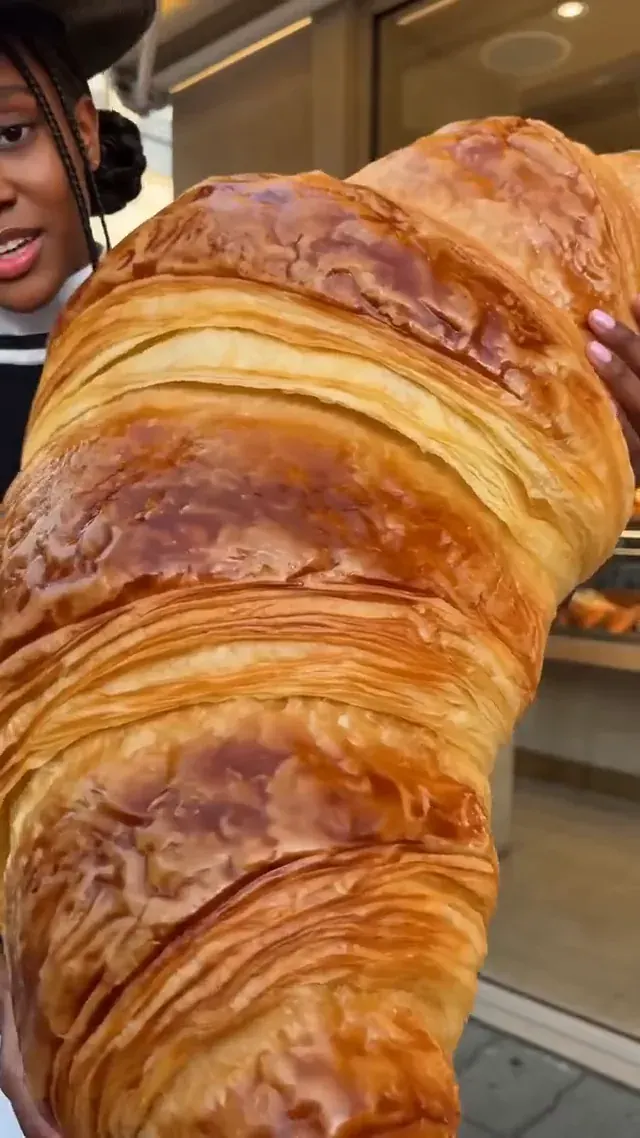
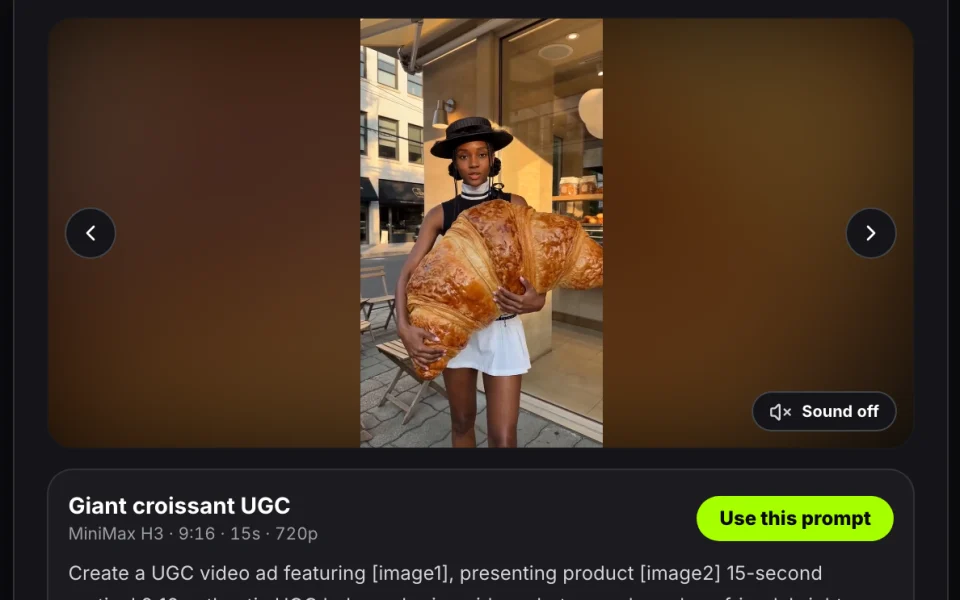
Create a UGC video ad featuring [image1], presenting product [image2] 15-second vertical 9:16 authentic UGC bakery sharing video, shot on a phone by a friend, bright natural daylight, casual handheld micro-shake, photorealistic, real skin texture, exact English lip-sync, no subtitles, no text overlays, no watermark. Use the reference person: stylish young Black woman with dark skin, braided hair styled into two low buns with long face-framing braids, wearing a wide black hat, black sleeveless fitted top, white mini pleated skirt, white collar detail, black-and-white belt, soft confident expression. No handbag. Background: cozy modern croissant bakery storefront, warm beige facade, big glass window full of pastries, outdoor wooden tables and chairs, soft golden afternoon light, and a giant croissant sign on top of the shop. Hero food: an oversized giant croissant, almost half her body size, golden brown glossy crust, flaky layered ridges, buttery texture, crisp edges, warm bakery shine. Shot 1: medium full-body outside the bakery. She holds the giant croissant with both arms, laughs at how huge it is, faces camera with mouth visible and says: "Okay, this is officially the biggest croissant I've ever held." Shot 2: close-up of the croissant. She tilts it toward the camera to show the glossy crust, flaky layers, and huge size, then says: "Look at these layers. It's literally bigger than my bag." Shot 3: she takes one real bite from the edge, crunch sound, crumbs fall naturally. She lowers the croissant so her mouth is visible, reacts with widened eyes and says: "Wait. It's actually so buttery and crispy." Shot 4: she hugs the giant croissant playfully, standing in front of the bakery window, and says: "I thought this was just for photos, but no, I'm eating this." Final shot: full-body bakery exterior, giant croissant visible in her arms, soft smile to camera: "If you see this place, get the giant one." Natural street ambience, bakery cafe sounds, crispy bite, light crumbs, live on-camera speech, exact lip-sync. The giant croissant stays flaky, golden, and clearly visible throughout.
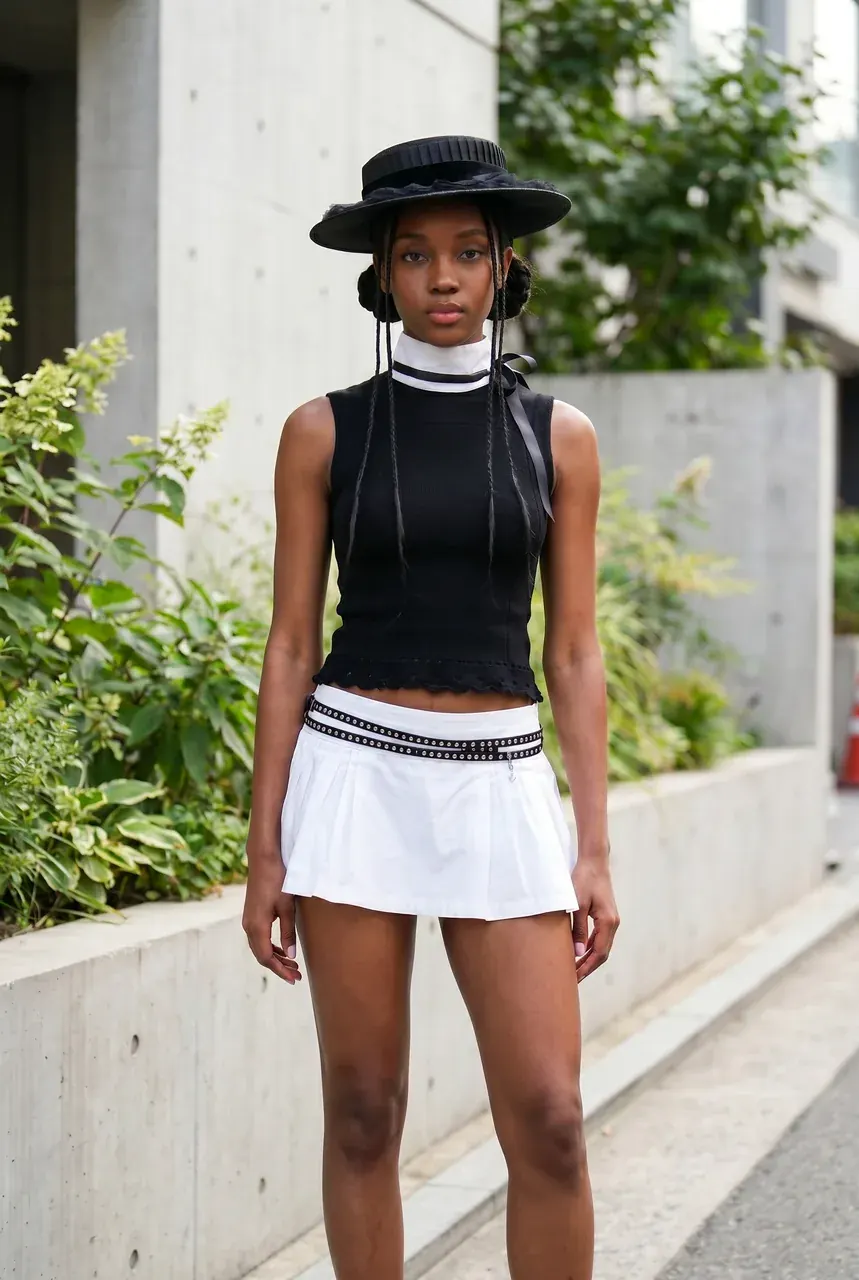 Person ref
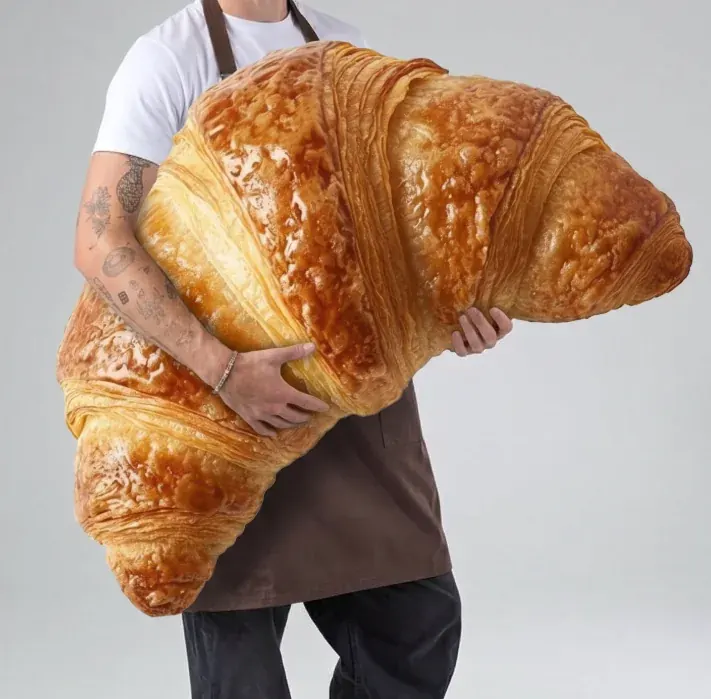 Product ref
Editorial demos generated on Wan 3.0 and MiniMax H3 showing 1–10 input references, locked appearance, and native audio.
Our reference to video ai generator pairs Wan 3.0 (2–15s, explicit Image 1–10 calling) and MiniMax H3 (4–15s, flexible portrait/wide tolerances) on one upload rack. Need clean character sheets first? Build plates in our 4K image tools.
2–15s · 1–10 Refs · Sound
Fast 2–15s multi-subject binding via Image 1, Image 2 ordering; crisp UGC & product scenes.
4–15s · 720p / 1080p · Sound
Extended 4–15s narrative beats, dialogue lip-sync, and 7,000-character scene briefs.
1K / 2K / 4K · Turnarounds
Generate front, profile, and outfit reference plates before running reference-to-video shots.
Multi-Ref · Clean Logos
Produce sharp product mockups and consistent prop sheets ready for multi image to video.
| Spec | Wan 3.0 (default) | MiniMax H3 |
|---|---|---|
| Upload slots (our studio) | 1–10 photos | 1–10 photos |
| Upstream slot ceiling | Up to 10 images | Up to 9 images |
| Single upload size limit | ≤ 20 MB per photo | ≤ 20 MB here (JPG, PNG, WebP, HEIC) |
| Prompt naming rule | Call Image 1, Image 2… in upload order | State who does what clearly per role |
| Clip length | 2–15s (default 5s) | 4–15s (default 8s) |
| Aspect options | 16:9, 9:16, 1:1, 4:3, 3:4 | 16:9, 9:16, 1:1, 4:3, 3:4, 21:9 |
| 720p credits / s | 120 cr/s | 35 cr/s |
| 1080p credits / s | 240 cr/s | 55 cr/s |
| Prompt limit | 5,000 chars | 7,000 chars |
| Best for | Fast 2–15s multi-subject clips & products | 4–15s spoken UGC, 21:9 cinema & deep scripts |
Summary: start on Wan 3.0 (120 cr/s at 720p) for rapid reference to video blocking, or pick MiniMax H3 for 4–15s dialogue scenes.
Instead of freezing your upload as frame one, ai reference to video extracts identity features from 1–10 reference photos so you can move the character into a completely new angle, outfit, or setting.
Alibaba’s Wan 3.0 video generation guide notes reference images render new scenes "with consistent appearance", while MiniMax’s video generation API treats them separately from start/end frames. Use Text to Video to invent worlds, Image to Video to animate frame one, and this reference to video generator when a fixed face or SKU must enter fresh compositions.
Use Image 1 as the performer... Keep her face, hair and the whole outfit unchanged.
One headshot isn’t enough if your character turns sideways: fal’s reference-to-video guide shows faces drift without a profile angle and warns against cramming unrelated styles ("reference overload"). Keep each slot single-subject on plain light, and fill only the 1–10 slots your shot truly needs.
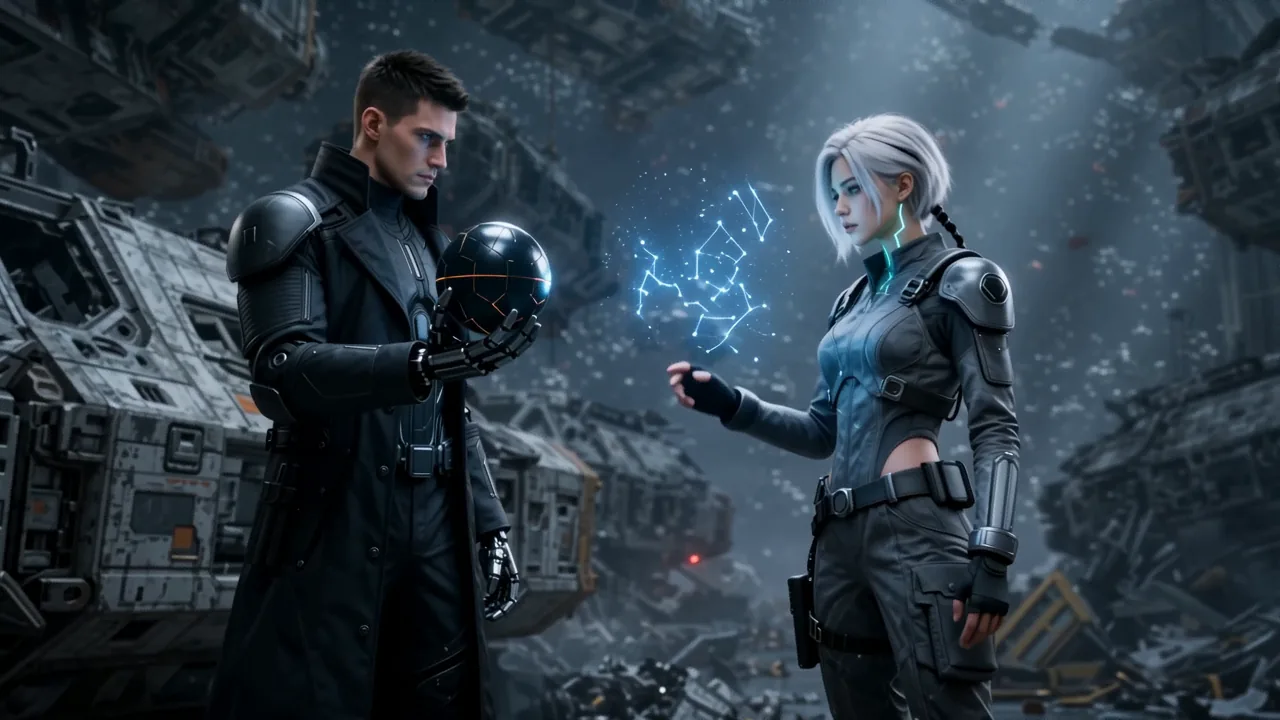
Maintain the exact identities, hairstyles, outfits and equipment of both characters.
Alibaba’s Wan 3.0 guide names slots directly ("Using the lip gloss product in Image 1…"), while HeyGen’s R2V guide stresses letting photos hold looks while words steer action—never write "blonde woman" over a brunette upload.
Subject tag (Image 1/2) + Action + Setting + Camera + Lock cue + Sound.
| Criterion | Text to Video | Image to Video | Reference to Video |
|---|---|---|---|
| Inputs | Prompt text only | 1 start frame (+ optional last) | 1–10 reference images + prompt |
| Opening composition | Model invents everything | Locked to frame one photo | Freely recomposed around subjects |
| Best when you want | Brand-new scenes fast | Subtle motion inside one photo | One person, pet or product across shots |
Summary: pick a consistent character video ai workflow whenever framing changes but your hero cannot.
| Slot | What to upload | Tip for clean lock |
|---|---|---|
| Image 1 (Required) | Front hero view of person, pet or SKU | Uncovered face or logo, sharp focus |
| Image 2 (Optional) | Side / 3-quarter angle OR co-star / prop | Stops identity morphing during head turns |
| Image 3 (Optional) | Held product, co-subject or outfit detail | Name explicitly as Image 3 in prompt |
| Image 4 (Optional) | Target room, street or studio background | Matches color temperature of subjects |
| Image 5 (Optional) | Extra object or lighting mood plate | Skip unused slots to avoid overload |
Summary: evenly lit, uncropped photos inside aspect 0.4–2.5 keep every subject separated cleanly.
| Scene Type | Weak (causes drift) | Strong (slot-anchored) |
|---|---|---|
| One character | "Woman walking in neon rain" | "Image 1 walks past neon cafe windows, medium tracking shot, rain foley" |
| Host + SKU | "Girl holding skincare bottle" | "Person in Image 1 raises serum bottle Image 2 toward camera, soft morning kitchen" |
| Two characters | "Two astronauts talking on deck" | "Navigator Image 1 greets operative Image 2 inside hangar; preserve outfits, low two-shot" |
Summary: assign every upload (Image 1, Image 2…) one clear verb so multiple images to video never swap faces.
Five real limits apply today: max clip duration is 15s (stitch 5–15s shots in an editor for longer reels); 180-degree turns need Image 2 as a profile photo; multiple faces near each other can blend unless separated by slot number; tiny label typography may soften in motion (pair slow push-ins with clean studio crops); and sound is synthesized natively rather than cloned from an uploaded voice.
Upload 1–10 clear photos, reference Image 1, Image 2 in your prompt, check exact credits on the Generate button, and download your MP4.
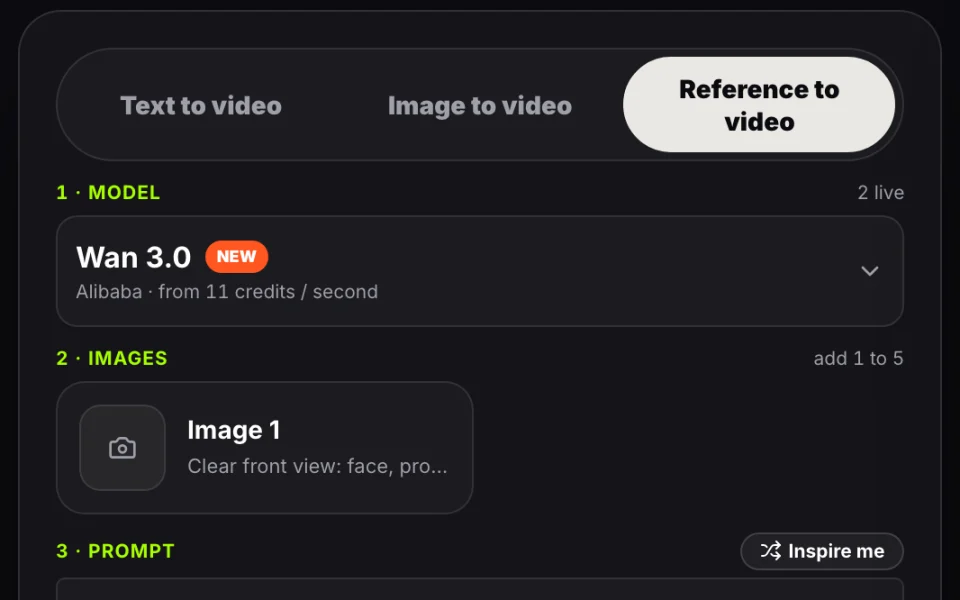
Pick Wan 3.0 or MiniMax H3, drop JPG, PNG, WebP, or HEIC stills up to 20 MB each, and set upload order carefully—Image 1 holds your main hero.
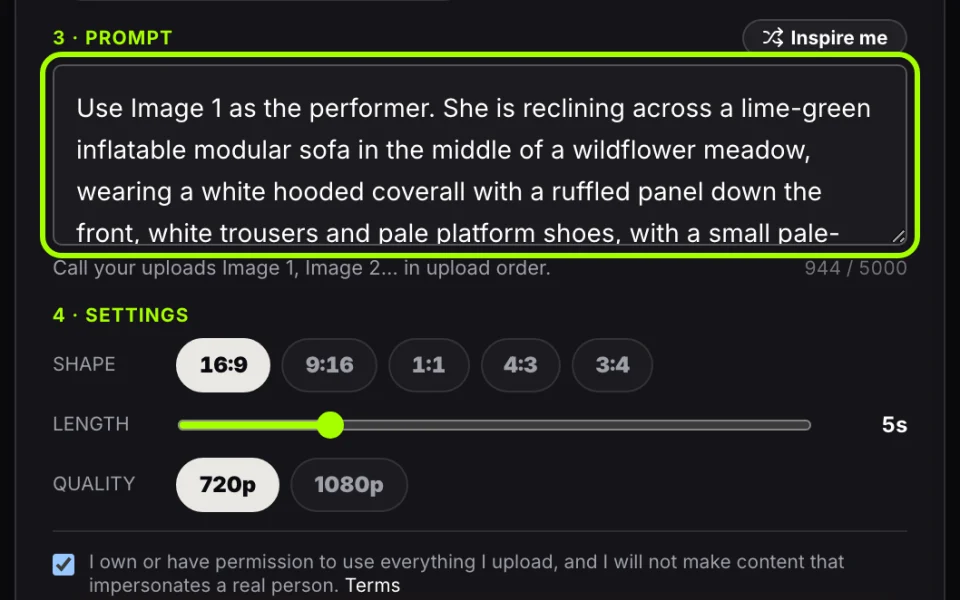
Write what Image 1 (and Image 2…) should do, pick 16:9, 9:16, 1:1, 4:3, 3:4, or 21:9 (H3), choose 2–15s length and 720p or 1080p, and read live credits upfront.
Press Generate, review identity lock with native sound on or muted, then save your zero-watermark H.264 MP4—stored in My creations for 30 days.
| Setting | Rule in Our Studio |
|---|---|
| Reference slots | 1–10 photos per clip |
| Formats & size | JPG, PNG, WebP (plus HEIC on H3) · ≤ 20 MB per file |
| Aspect tolerance | Keep each photo inside 0.4–2.5 W/H ratio |
| Slot naming | Address as Image 1, Image 2… in exact upload order |
| Prompt limit | 5,000 chars (Wan 3.0) · 7,000 chars (MiniMax H3) |
| Length & shape | 2–15s (slider) · 16:9, 9:16, 1:1, 4:3, 3:4 (+ 21:9 on H3) |
| Resolution | 720p or 1080p clean MP4 |
| Native audio | On-screen dialogue, foley & ambience muxed automatically |
| Retention & refunds | Uploads auto-delete after 24h · MP4s stay 30 days · errors auto-refund |
Summary: 1–10 photos (≤ 20 MB each) render 2–15s MP4s with native sound and automatic upload purging.
Creators, e-commerce brands, and episodic storytellers use a consistent character video ai workflow to place one verified persona, pet, or SKU into unlimited settings without reshoots.
Drop your spokesperson in Image 1 and packaging in Image 2 to shoot storefront, kitchen, or unboxing variations in minutes.
Create a UGC clip featuring Image 1 holding bakery pastry Image 2 outside warm cafe, live reaction speech.
Click any clip above in the studio to test multi image to video prompts right away.
Every parameter change updates credits live on the Generate button: our default Wan 3.0 5s 720p clip costs 600 credits. Adding 1 or 10 photos costs the exact same rate—billing depends only on engine, length, and quality. See Pricing.
| Clip Length | Wan 3.0 (720p) | MiniMax H3 (720p) | 1080p upgrade |
|---|---|---|---|
| 2s quick test | 240 cr | — (min 4s) | From 240 cr/s |
| 5s standard clip | 600 cr (default) | 175 cr | 275 cr (H3) |
| 8s social hook | 960 cr | 280 cr | 1,920 cr (Wan 3.0) |
| 10s story beat | 1,200 cr | 350 cr | 55 cr/s (H3) |
| 15s UGC ad | 1800 cr | 525 cr | 825 cr (H3) |
Summary: 240–1800 credits at 720p regardless of whether you upload 1 or 10 reference photos.
| Tier | Price | Credits | ~5s Wan Clips ($/s) |
|---|---|---|---|
| Small pack | $9.90 | 1,500 | ~2 ($0.79/s) |
| Medium pack | $24.90 | 4,000 | ~6 ($0.75/s) |
| Large pack | $49.90 | 9,000 | ~15 ($0.67/s) |
| Starter plan | $14.90/mo | 3,000 | ~5 ($0.60/s) |
| Pro plan | $24.90/mo | 9,000 | ~15 ($0.33/s) |
| Premium plan | $99/mo | 40,000 | ~66 ($0.30/s) |
Packs never expire; credits also unlock AI video templates and 4K image tools.
Unused first packs qualify within 7 days under our refund policy; failed or upstream-blocked runs refund automatically.
Reference uploads run directly over Alibaba Cloud Model Studio and the MiniMax API in slot order with strict automatic deletion—see our privacy policy and terms.
Reference photos auto-delete after 24h and finished MP4s expire after 30 days. Only upload adults (18+) with explicit permission.
Your Image 1–10 stack and exact prompt reach Wan 3.0 or MiniMax H3 untouched; failed runs refund every credit automatically.
Finished clips store without watermarks or extra compression, ready for client ads, social campaigns, and multi-shot edits.
Combine multi image to video with start-frame animation, pure prompt generation, 4K character sheets, or viral dance templates inside our AI video generator workspace.
 Start Frame Lock
Lock frame one’s exact composition when you only want to animate a finished hero photo.
 Prompt Only
Create original scenes from words alone when no uploaded subject plate is required.
4K Ref SheetsProduce consistent front + profile character plates with Nano Banana 2.1 before animating.
 One-Click Trends
Drop one portrait into choreographed trend, dance, and meme formats in one click.
Drop 1 to 10 clear photos above, call them Image 1, Image 2 in your ai reference to video prompt, and check exact upfront credits before rendering.