

01
Auto-Deleted & Never Trained
Uploads purge after 24h and videos after 30 days, excluded from training. No uploads of minors under 18.
Upload one photo, describe the motion, and get a 2–15 second MP4 with native sound at 720p or 1080p.
Short side ≥320px · shape 2:5 to 5:2 · video takes the first frame’s shape
0 / 7000
Native sound included
280 credits for this run
Describe what should happen.
No watermark · Failed runs refunded · Uploaded photo clears after 24 h
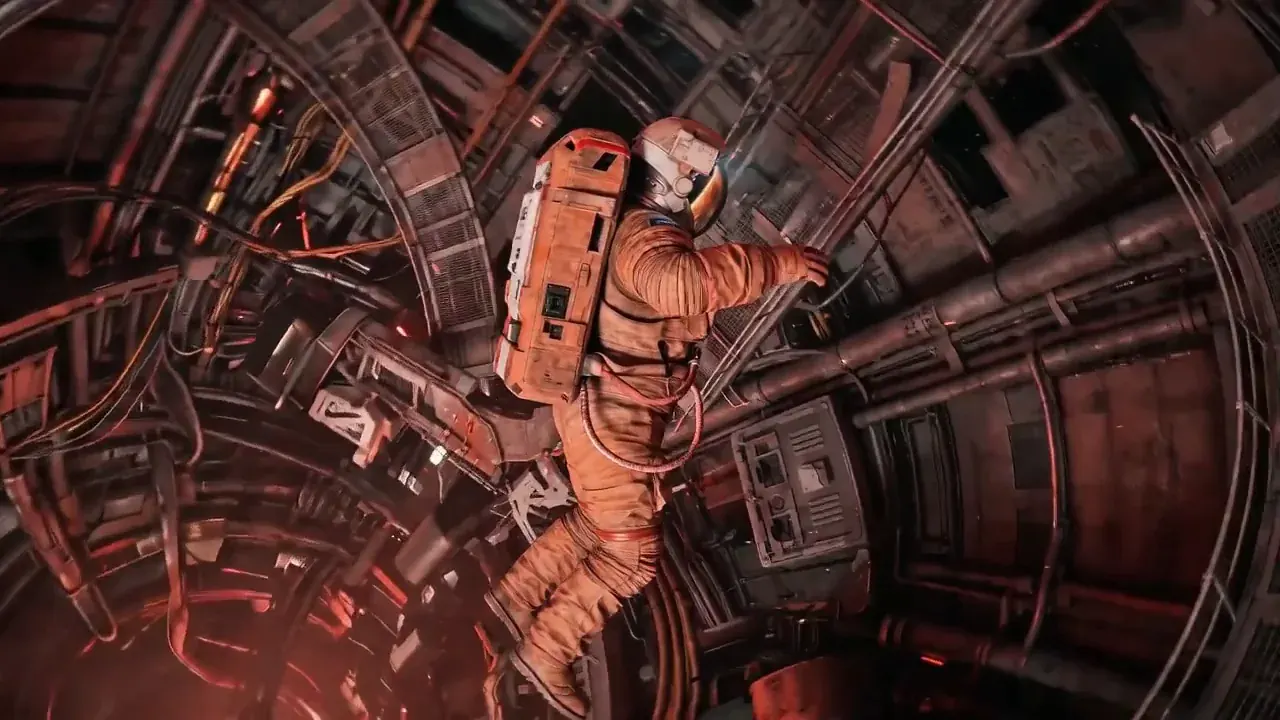
Mars station spiral
MiniMax H3 · 16:9 · 10s · 720p
A mind-bending, rotating shot portrays an astronaut exploring the disorienting, gravity-defying interior of a colossal, abandoned space station orbiting Mars. The light is red due to the presence of Mars. As the camera spirals around the astronaut, the station's architecture seamlessly shifts and folds in on itself, blurring the lines between reality and illusion.
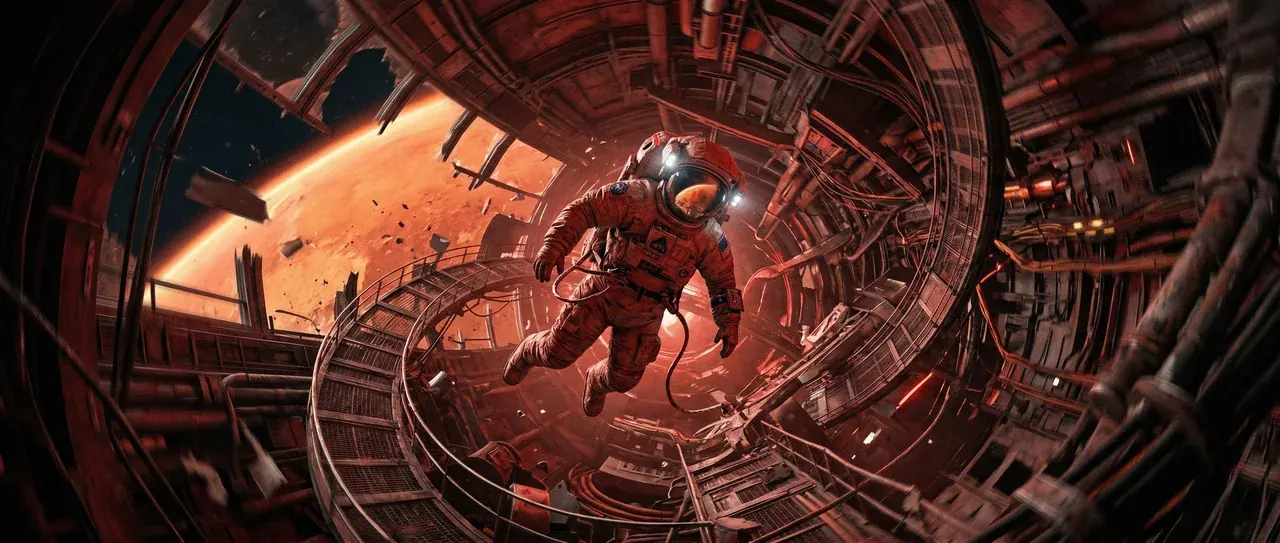 Start frame
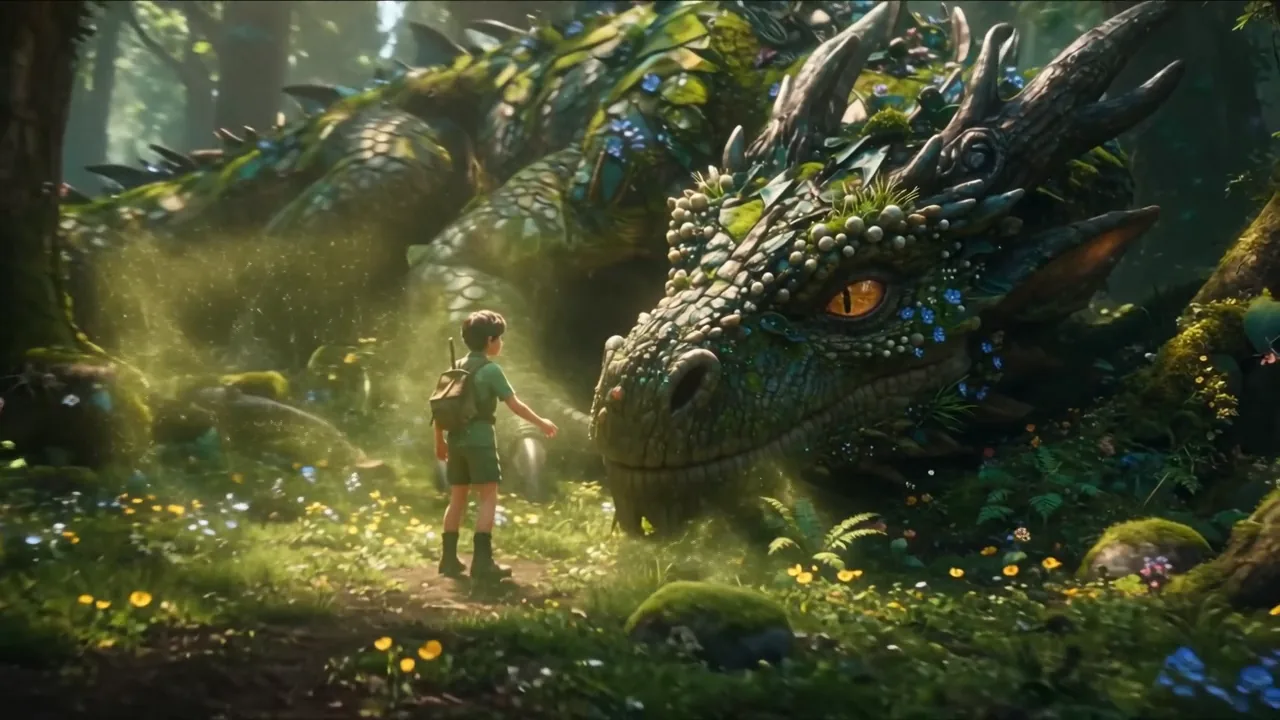
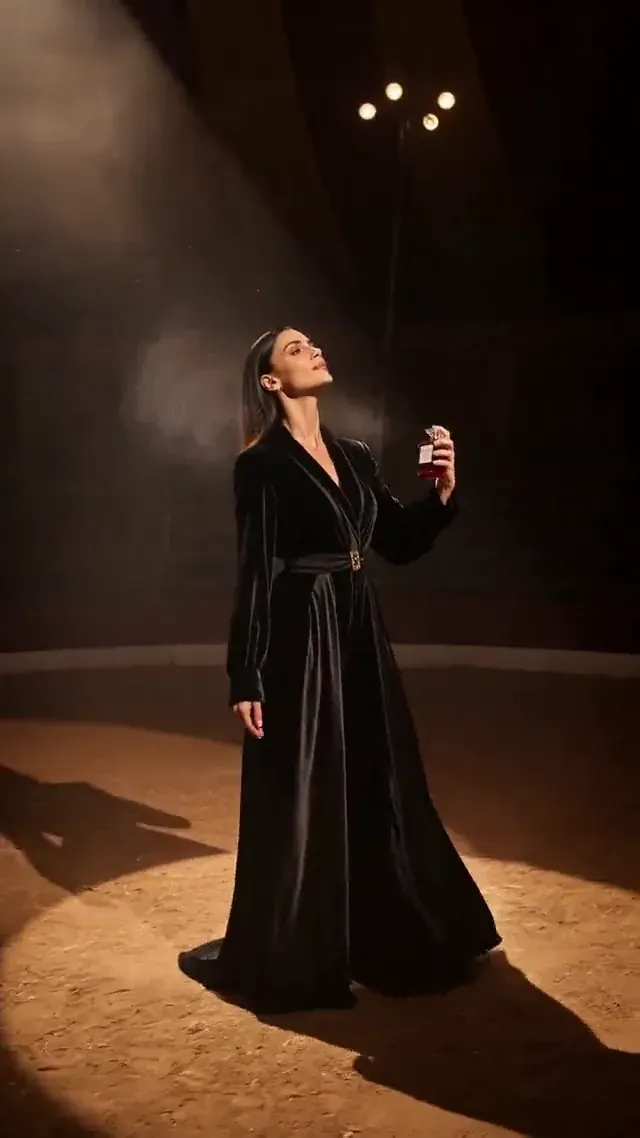
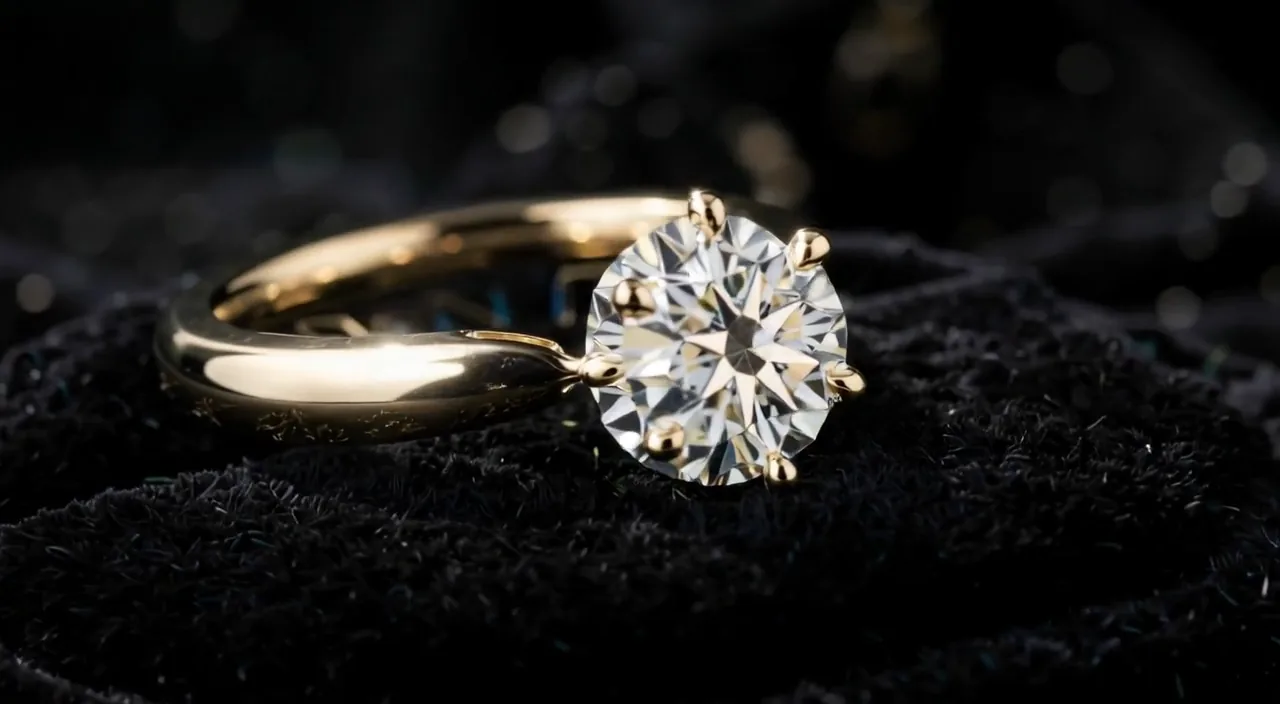
Inspect each uploaded frame beside its motion prompt, engine specs, credit cost, and unedited MP4. All six clips are Editorial demos made in this studio—click Use this prompt to load the same settings.
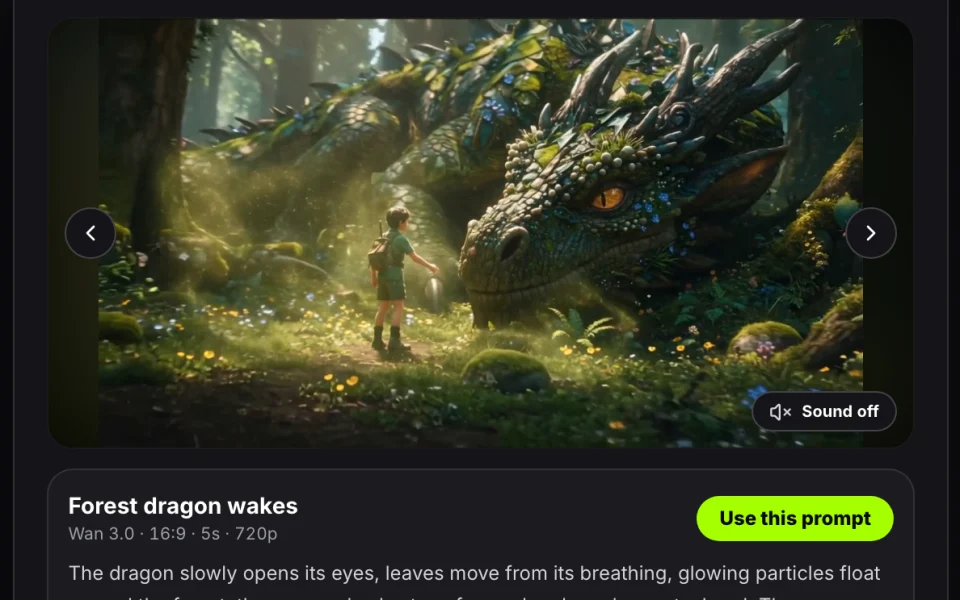
The dragon slowly opens its eyes, leaves move from its breathing, glowing particles float around the forest, the ranger slowly steps forward and reaches out a hand. The camera slowly circles around both characters revealing the enormous scale difference.
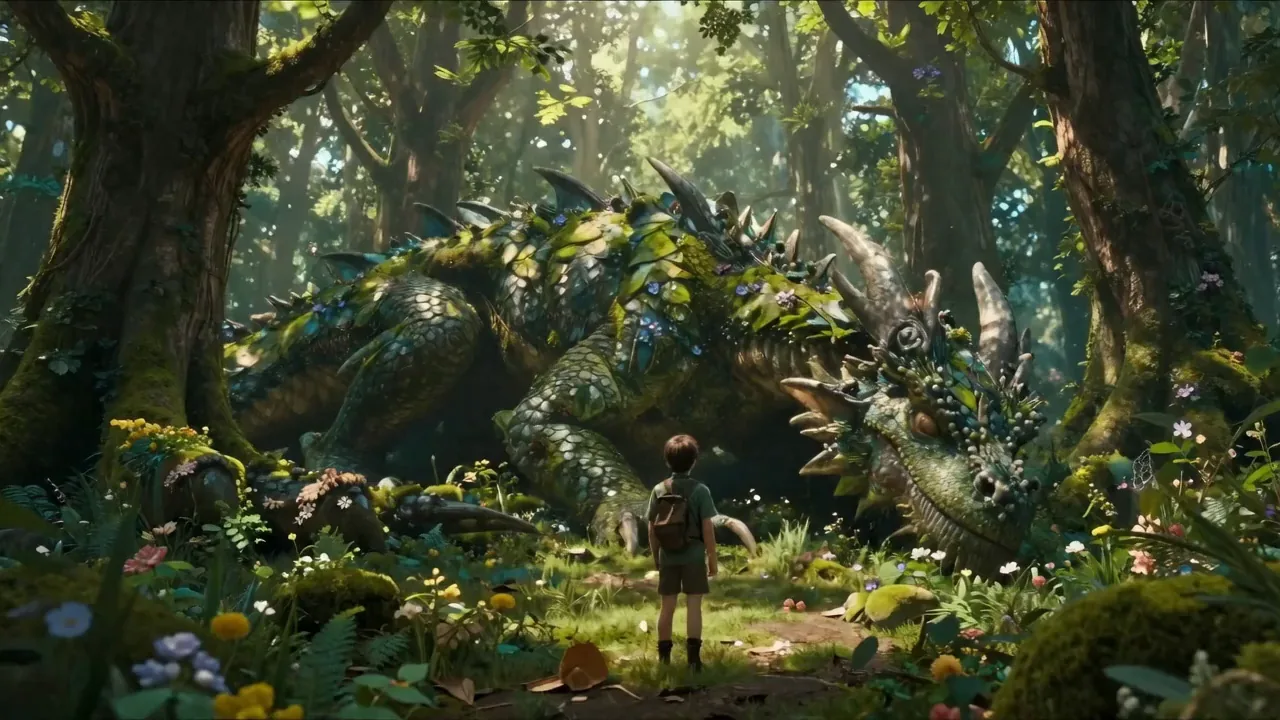 Start frame
Editorial demos rendered on MiniMax H3 and Wan 3.0 showing uploaded start frame, motion prompt, and native sound MP4.
Both MiniMax H3 and Wan 3.0 run inside the same image to video ai generator—switch engines on one photo without uploading twice, or generate frame one first with our 4K image tools.
4–15s · 720p / 1080p · Sound
Best for portraits, storytelling beats, first/last frame transitions, and 7,000-character briefs.
2–15s · 720p / 1080p · Sound
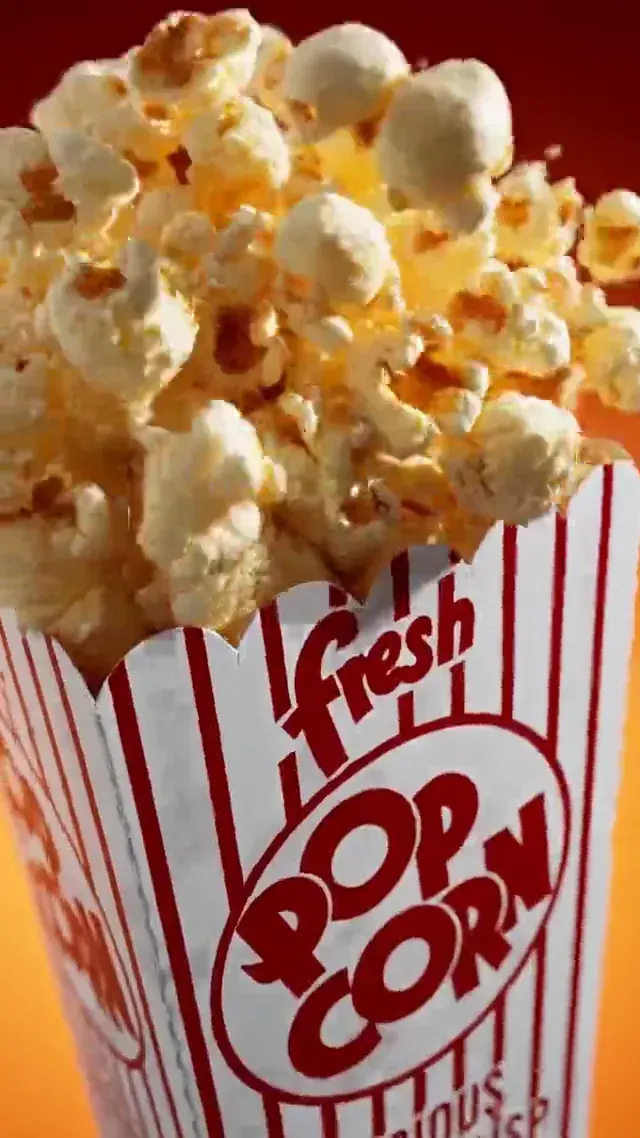
Fast 2–15s motion, crisp product turntables, macro lighting, and reaction loops.
1K / 2K / 4K · Text & Edit
Create custom illustrations or styled start frames ready to animate in photo to video ai.
Multi-Ref · Clean Type
Generate sharp product packaging or first/last frame pairs before rendering video.
| Spec | MiniMax H3 | Wan 3.0 |
|---|---|---|
| Input photo | JPG, PNG, WebP · ≤ 10 MB · ≥ 320 px | JPG, PNG, WebP · ≤ 10 MB · ≥ 320 px |
| Picture shape | 0.4 to 2.5 (W/H) | Most shapes |
| Last frame | Optional end frame | Optional end frame |
| Length | 4–15s (default 8s) | 2–15s (default 5s) |
| Quality | 720p / 1080p MP4 (upload shape) | 720p / 1080p MP4 (upload shape) |
| Native audio | Speech, foley & ambience | Dialogue, SFX & ambience |
| Prompt limit | 7,000 chars | 5,000 chars |
| Credits / s | 35 (720p) · 55 (1080p) | 120 (720p) · 240 (1080p) |
| Best for | Portraits, stories & 8–15s ads | Products, macro & 2–5s loops |
Summary: both preserve photo shape, mux native audio, export 720p/1080p MP4, and support optional last frames.
Frame one holds identity and light while diffusion predicts natural motion across 2–15 seconds with native audio.
MiniMax H3 and Wan 3.0 refine video frames jointly around frame one Stable Video Diffusion, Blattmann et al., 2023. Picture to video animates faces, hair, water, and depth instead of panning frozen stills. Need several images to video locked to one subject? Switch to Reference to video.
Dragon opens its eyes, glowing particles drift, ranger steps forward as camera orbits.
Skip re-describing visible clothing—focus purely on subject action, camera move, lighting change, and sound. Check the prompt and photo checklist at the bottom of this section and follow Runware’s last-frame guide for smooth transitions.
Action + Camera move + Light/weather shift + Sound.
| Capability | Image to video AI (this studio) | Slideshow editor |
|---|---|---|
| Inputs | 1 start photo + optional last frame | Multiple static photos |
| Motion inside | Faces, hair, wind, water & camera depth | Frozen bitmap; Ken Burns zoom only |
| Output | 2–15s MP4 with sound | Manual background track only |
| Best for | Reels, TikTok, ads & live portraits | Photo recaps and albums |
Summary: picture to video moves elements inside frame one; use Reference to video for up to 0 photos.
| Guideline | Works cleanly | Likely to drift |
|---|---|---|
| Motion prompt | "turns, smiles; slow push-in, cafe sound" | "woman at cafe, cinematic 4K" |
| Subject framing | Sharp focal subject with headroom | Tiny face in crowded wide shot |
| Face clarity | Eyes & face uncovered | Hidden behind hair, hands, or mask |
| File & shape | Original photo (2:5 to 5:2 shape) | Blurry screenshots or narrow strips |
Summary: sharp photos (0.4 to 2.5 shape), visible faces, and single-action motion cues reduce distortion.
Keep any last frame in the same room with only pose or light shifting so the clip never warps mid-shot. Note limits: 2–15s cap, small lettering may soften in motion, and audio is generated natively rather than lip-synced to uploaded voice tracks.
Upload one photo, describe the motion and sound, check exact credits on the button, and export a clean MP4. Your renders stay ready in My creations for 30 days.
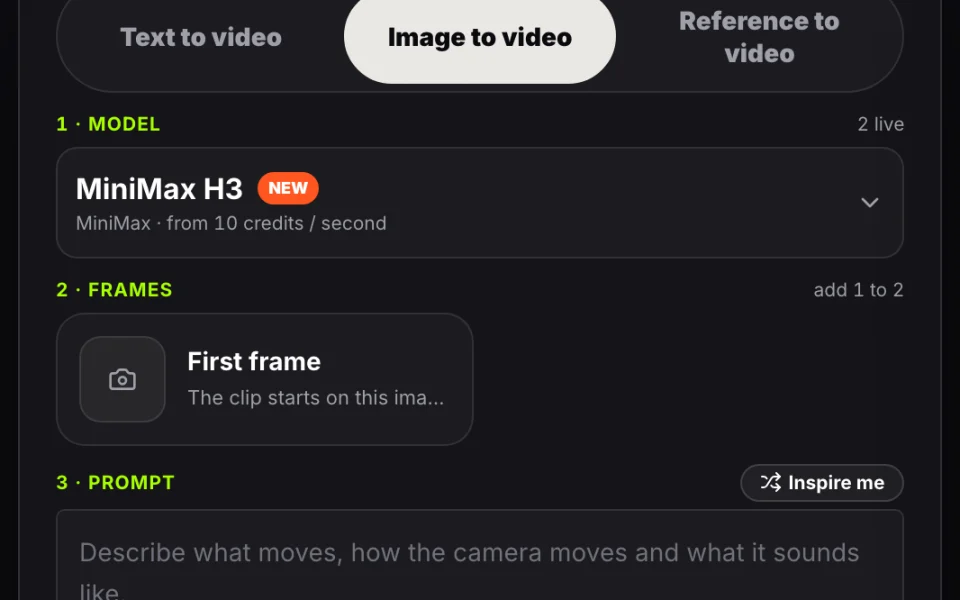
Drop a JPG, PNG, or WebP file (up to 10 MB, shortest side 320 px+). Output keeps your photo shape; optionally add a Last frame.
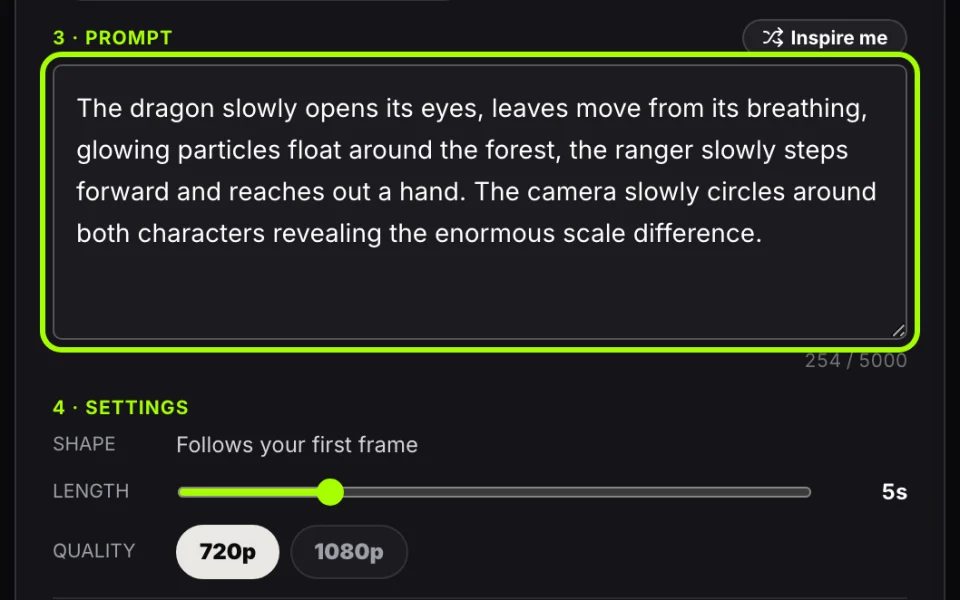
State what moves, how the camera travels, and what we hear. Pick MiniMax H3 (4–15s) or Wan 3.0 (2–15s) with transparent button pricing.
Press Generate, play back your video with native audio, and download a zero-watermark MP4—or tweak one cue and re-run.
| Setting | Requirement |
|---|---|
| Accepted uploads | JPG, PNG, or WebP · ≤ 10 MB · shortest side ≥ 320 px |
| Output resolution & shape | 720p or 1080p H.264 MP4 matching frame one’s aspect ratio |
| Privacy & failure refund | Uploads auto-delete after 24h · failed runs refund credits |
Summary: upload JPG/PNG/WebP (≤10 MB, ≥320 px) to export 720p/1080p MP4 with native sound and automatic deletion.
From ecommerce product arcs to 9:16 reaction clips and animated illustrations, see real motion recipes tested in this studio.
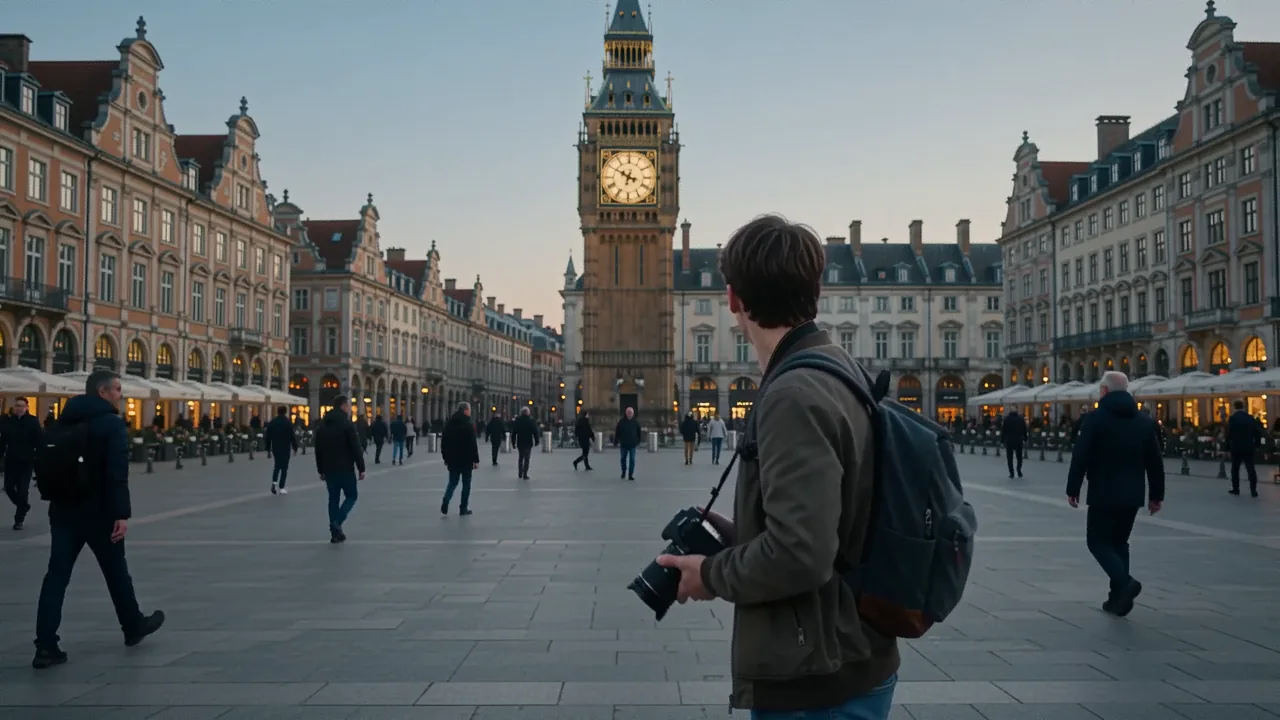
Turn a portrait or dramatic moment into a punchy vertical clip with sound—matching social aspect ratios natively with zero cropping.
Quick snap zoom in on face as expression shifts from calm to wide-eyed shock, bright punch sting.
Preview every live sister-tested sample from our img to video queue before generating yours.
Every run shows exact credits upfront: MiniMax H3 is 35 cr/s (280 credits for 8s 720p) and Wan 3.0 is 120 cr/s. See Pricing.
| Preset | Credits | Small (1,500) | Medium (4,000) | Pro (9,000/mo) |
|---|---|---|---|---|
| Wan 3.0 · 2s | 240 | 6 | 16 | 37 |
| MiniMax H3 · 4s | 140 | 10 | 28 | 64 |
| Wan 3.0 · 5s | 600 | 2 | 6 | 15 |
| MiniMax H3 · 8s | 280 | 5 | 14 | 32 |
| MiniMax H3 · 15s | 525 | 2 | 7 | 17 |
Summary: 240–525 credits at 720p; packs never expire and unlock 1080p.
| Tier | Price | Credits | 1080p access |
|---|---|---|---|
| Small pack | $9.90 | 1,500 | Yes ($0.23/s @ H3) |
| Medium pack | $24.90 | 4,000 | Yes |
| Pro plan | $24.90/mo | 9,000/mo | Yes ($0.10/s @ H3) |
| Premium plan | $99/mo | 40,000/mo | Yes ($0.09/s @ H3) |
Credits also work on AI video templates and AI video trends.
Unused first packs qualify within 7 days under our refund policy; failed runs refund automatically.
Uploaded photos delete automatically after 24 hours and finished MP4s expire after 30 days—see our privacy policy and responsible use rules.
Uploads purge after 24h and videos after 30 days, excluded from training. No uploads of minors under 18.
Swap MiniMax H3 and Wan 3.0 on one upload with clear upfront pricing. Failures or upstream blocks refund credits automatically.
Download clean 720p or 1080p MP4s with native sound for social reels, product listings, and client ads.
Enable synthetic-media labels for realistic scenes on YouTube or TikTok per EU AI Act Art. 50.
Start from text words, lock one identity across multiple photos, Make the first frame with AI text to image, or explore all tools inside the AI video generator hub.
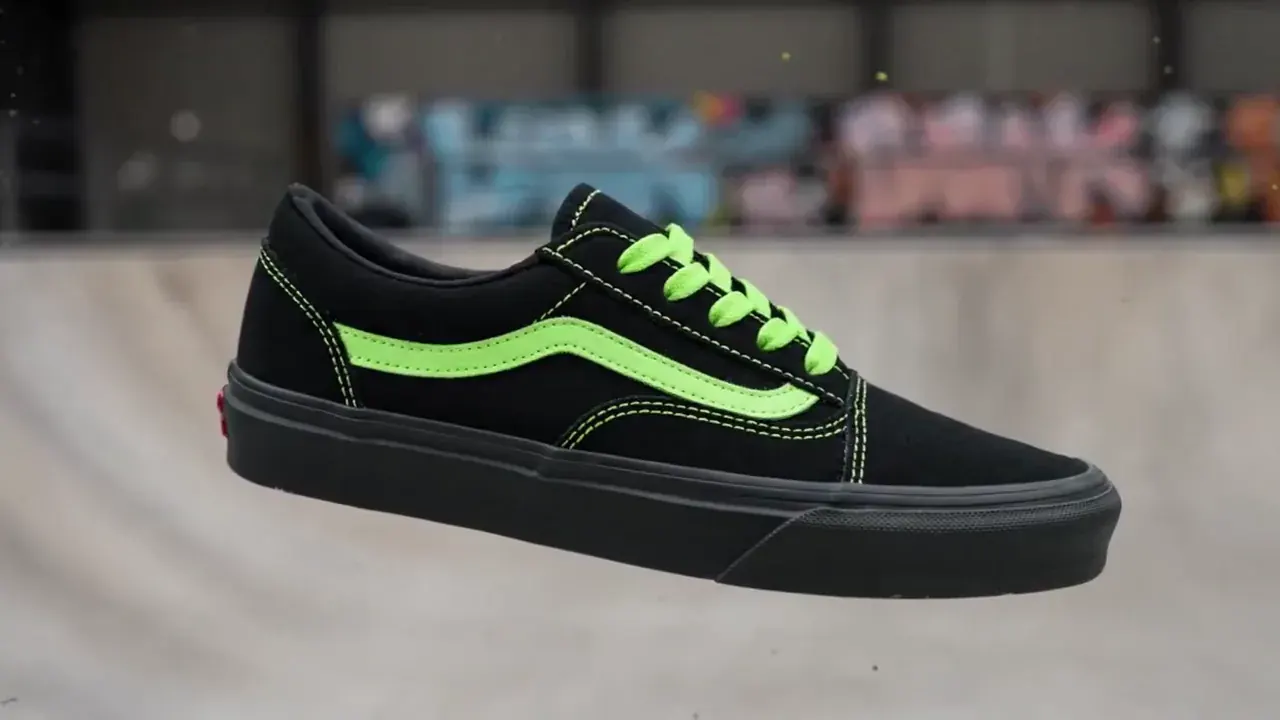 Prompt Only
Describe an entire scene from scratch without uploading a frame.
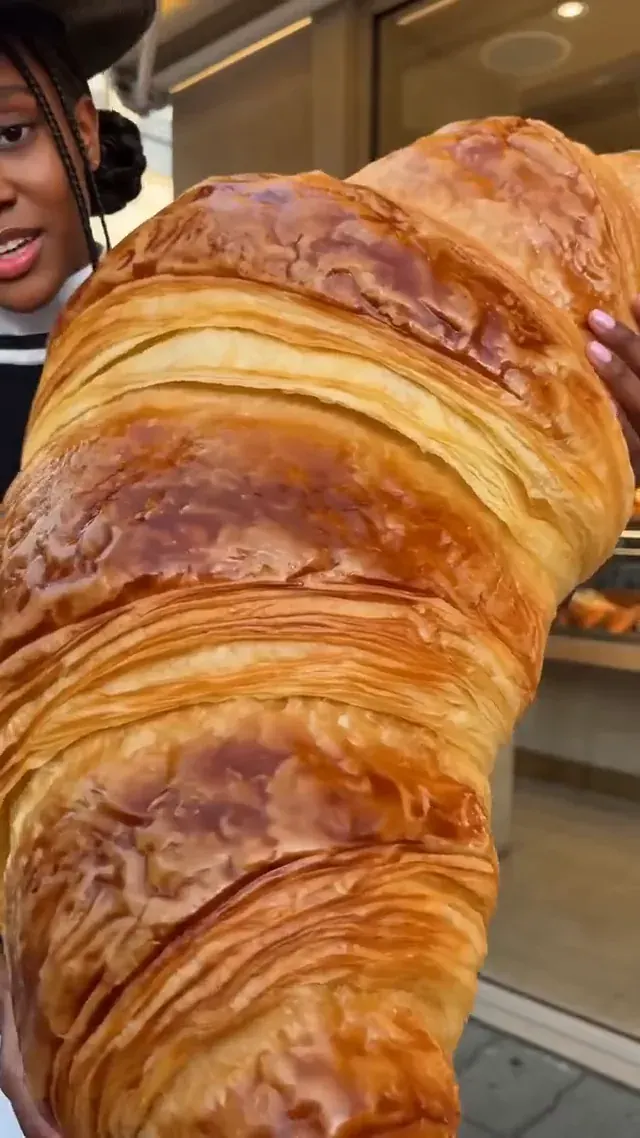 Multi-Reference
Lock faces, outfits, or products across up to 0 photos in new scenes.
Frame One StudioGenerate custom 4K stills with Nano Banana 2.1 or GPT Image 2 to animate here.
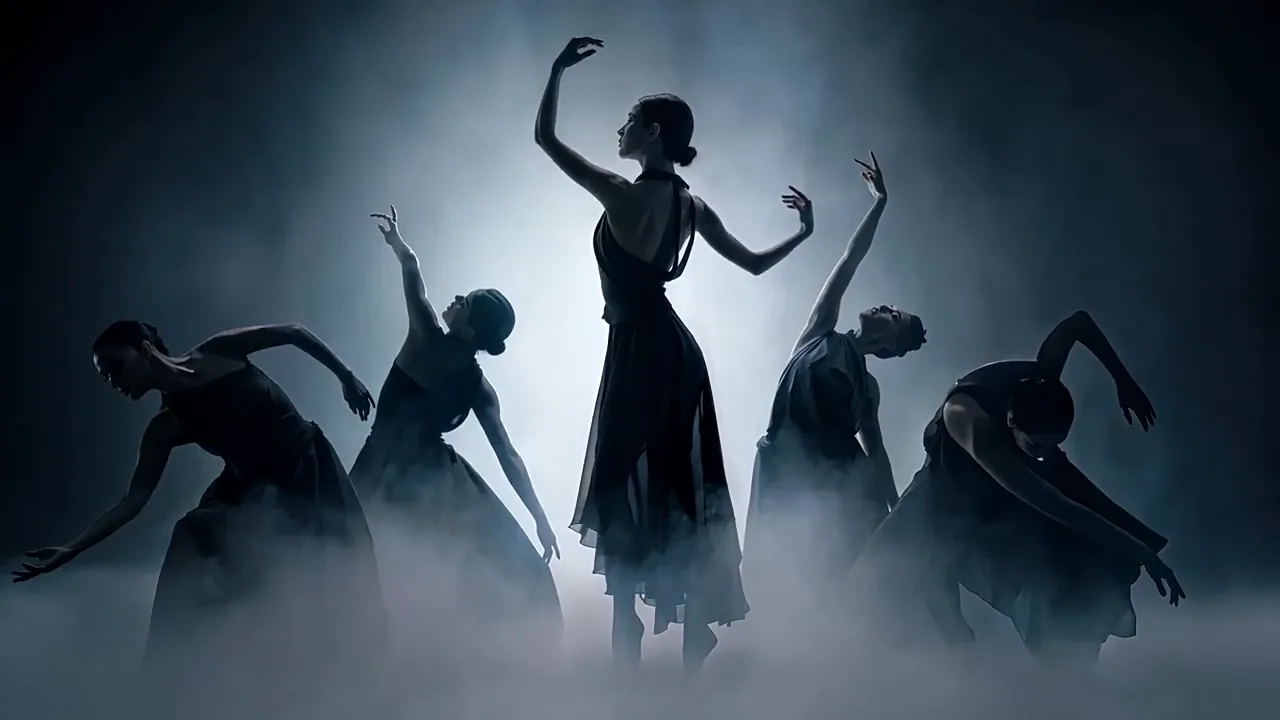 Viral Memes
Drop one portrait into choreographed dance, trend, and meme templates.
Upload your sharpest photo above, write one clear motion prompt, and inspect the exact credit count before generating.